
Team Leader - Nutanix Technology Champion - Nutanix NTC Storyteller

Julien DUMUR
Infrastructure in a Nutshell
nutanix centreon supervision snmp

We’ve all been there. That moment when your monitoring dashboard shows a beautiful green circle for your Nutanix cluster, while in reality, one of the nodes is struggling. That’s exactly what happened to me recently.

When I integrated Nutanix into my infrastructure, my first instinct was to pull out Centreon. Why? Because it’s my Swiss Army knife for monitoring. But I quickly realized that the “standard” method of adding a cluster locks us into an illusion of security. We see the “whole,” but we miss the “detail.”

In this feedback report, I’ll share my experience with Nutanix Centreon monitoring and explain why you should stop monitoring your cluster solely through its Virtual IP (VIP) and switch to a granular node-by-node strategy.

Why the “default” configuration left me wanting more

When installing the Nutanix Plugin Pack on Centreon, the documentation naturally guides you toward adding a single host representing the cluster.

How the standard Nutanix Plugin Pack works

The classic method involves querying the cluster’s Virtual IP (VIP) or the IP of one of the CVMs (Controller VM). It’s simple and fast: you enter the SNMP community, apply the template, and the services appear. You then monitor global CPU usage, average storage latency, and the general status reported by Prism.

The “Black Box” problem

This is where the trouble starts. By querying only the VIP, you are actually querying an SNMP agent that aggregates data. If you have a 3-node cluster, the monitoring will tell you that the cluster-wide memory is “OK.” But what about the memory load on node #3?

This is what I call the “black box” effect. Nutanix’s Shared Nothing architecture is a strength for resilience, but it can become a blind spot for monitoring if you don’t drill down to the physical layer. For an expert, knowing the cluster is “Up” is not enough; we need to know which specific physical component requires intervention before redundancy is compromised.

Decoupling monitoring for granular visibility

To break out of this deadlock, I changed my approach: treating each node as its own entity in Centreon. Here’s how I did it.

Step 1: Setting the stage on Prism Element

Before touching Centreon, you must ensure Nutanix is ready to talk. Head to Prism Element, in the SNMP settings. Here, I configured SNMP v2c access (or v3 if you want to max out security).

Check out my dedicated articles if you need details on how to configure SNMP v2c or SNMP v3 on your Nutanix cluster.

Step 2: The “Node by Node” addition strategy in Centreon

This is where the magic happens. Instead of creating a single “Cluster-Nutanix” host, I created as many hosts as I have physical nodes (e.g., cluster-2170_n1, cluster-2170_n2, etc.).

Host Configuration: Each host points to the cluster’s VIP IP address or the specific node’s CVM IP. By default, this will pull the same global information, but stay tuned.

Applying Templates: I apply the Virt-Nutanix-Hypervisor-Snmp-Custom template.

Surgical Filtering: This is the key secret. In the “Host check options,” I apply the custom macro FILTERNAME. This allows me to specify the exact name of the host to monitor. The plugin then filters the SNMP data sent by the VIP to return only what concerns my specific node.

Step 3: The trick to maintaining Cluster consistency

To keep an overview, I use Host Groups in Centreon. I created a group named HG-Cluster-Nutanix-Prod containing my 3 nodes. This allows me to create aggregated dashboards while keeping the “drill-down” capability (clicking to see details) for each physical machine.

Immediate benefits: Dashboarding and Peace of Mind

Since I switched to this configuration, my daily life as a sysadmin has radically changed:

Granular performance analysis: I can now identify a node consuming abnormally more RAM or CPU than its neighbors. It’s the perfect tool for detecting a “hot point” or a VM distribution issue.

Increased responsiveness: When something goes wrong, Centreon sends me an alert with the specific node name (n1, n2, etc.). No more guessing games in Prism Element to find out where to focus my search.

Clean history: I have metric graphs per physical server, which greatly facilitates Capacity Planning and troubleshooting.

Conclusion

If you manage Nutanix, don’t settle for the superficial view offered by the VIP IP alone. By taking 10 minutes to declare your hosts individually in Centreon with the FILTERNAME macro, you move from “passive” monitoring to a true control tower.

My verdict is clear: node-level monitoring is the only way to guarantee true high availability and sleep soundly at night.

Read More

I still remember my first time entering a “serious” server room back in the mid-2000s. What struck me wasn’t so much the deafening roar of the air conditioning, but the physical density of the infrastructure.

Back then, to run a few hundred virtual machines, you didn’t just need “a cluster.” You needed entire rows. Power-hungry Blade Centers, monstrous Fibre Channel switches with their characteristic orange cables, and above all, sitting in the center of the room like a sacred totem: the Storage Array. Entire cabinets filled with 10k RPM mechanical disks, weighing as much as a small car and consuming as many ‘U’ (rack units) as possible.

This is what we call the 3-Tier architecture. While Hyperconvergence (HCI) and Public Cloud seem to be the norm today, it is crucial to understand that 3-Tier was the backbone of enterprise IT for nearly 20 years. To understand this architecture is to understand where we come from, and why we sought to change it.

In this article, the first in a series that will present the evolution of 3-tier virtualization infrastructures towards Nutanix hyperconverged infrastructures, we will factually dissect this standard: how it works, why it dominated the market, and the technical limits that eventually rendered it obsolete for modern workloads.

Genesis: Why Did We Build It This Way?

To understand 3-Tier, you have to go back to the pre-virtualization era. A physical server hosted a single application (Windows + SQL, for example). It was the “Silo” model. Inefficient, expensive, and a nightmare to manage.

Virtualization (led by VMware) arrived with a promise: consolidate multiple virtual servers onto a single physical server. But for this magic to happen, there was an absolute technical condition: mobility.

For a VM to move from physical server A to physical server B without service interruption (the famous vMotion), both servers had to see exactly the same data, at the same moment.

This is where the architecture split into three distinct layers:

  1. We removed the disks from the servers (which now only do computing).
  2. We centralized all data in external shared storage (the Array).
  3. We connected everything via a dedicated ultra-fast network (the SAN).

It was a revolution: the server became “disposable,” or at least interchangeable, because it no longer held the data. But this centralization created a single point of complexity and performance: shared storage. It is the heart of the reactor, but also its Achilles’ heel.

The Anatomy of 3-Tier: Decoupling the Layers

If we were to draw this architecture, it would look like a three-layer cake, where each layer speaks a different language.

1. The Compute Layer

At the very top, we have the physical servers (Hosts). They run the hypervisor (ESXi, Hyper-V, KVM). Their role is purely mathematical: providing CPU and RAM to the virtual machines.

These servers are “Stateless”. They store nothing persistent. If a server burns out, it doesn’t matter: we restart the VMs on its neighbor (HA).

This logic was pushed to the extreme with “Boot from SAN”. We even ended up removing the small local disks (SD cards or SATA DOM) that contained the hypervisor OS so that the server was a total empty shell, loading its own operating system from the distant storage array. A technical feat, but a nightmare in case of SAN connectivity loss.

2. The Network Layer (SAN)

In the middle sits the Storage Area Network. It is the highway that transports data between the servers and the array. Historically, this didn’t go through classic Ethernet (too unstable at the time), but through a dedicated protocol: Fibre Channel (FC).

It is a deterministic and lossless network. Unlike Ethernet which does “best effort,” FC guarantees that packets arrive in order.

If you have administered SAN, you know the pain of Zoning. You had to manually configure on the switches which port (WWN) was allowed to talk to which other port. A single digit error in a 16-character hexadecimal address, and your production cluster would stop dead. It was a task so complex that it often required a dedicated team (“The SAN Team”).

3. The Storage Layer

At the very bottom, the Storage Array. It is a giant computer specialized in writing and reading blocks of data. It contains controllers (the brains) and disk shelves (the capacity).

The array aggregates dozens or even hundreds of physical disks to create large virtual volumes (LUNs) that it presents to the servers. It ensures data protection via hardware RAID.

All the intelligence resides in two controllers (often in Active/Passive or Asymmetric Active/Active mode). This is an architectural bottleneck: no matter if you have 500 ultra-fast SSDs behind them, if your two controllers saturate in CPU or cache, the entire infrastructure slows down. This is called the “Front-end bottleneck”.

The Strengths: Why This Model Ruled the World

It’s easy to criticize 3-Tier with our 2024 eyes, but we must recognize that it brought incredible stability.

  1. Robustness and Maturity: This is hardware designed never to fail. Storage arrays have redundant components everywhere (power supplies, fans, controllers, access paths). We talk about “Five Nines” (99.999% availability).
  2. Fault Isolation: If a server crashes, the storage lives on. If a disk breaks, hardware RAID rebuilds it without the server even noticing (or almost).
  3. Scale-Up Independence: This was the king argument. Running out of space but your CPUs are idling? You just buy an extra disk shelf. Running out of power but have plenty of space? You add a server. You could size each tier independently.

The Weaknesses: The Other Side of the Coin

Despite its robustness, the 3-Tier model began to show serious signs of fatigue in the face of modern virtualization. For us admins, this translated into shortened nights and a few premature gray hairs.

Operational Complexity

The greatest enemy of 3-tier is not failure, it’s the update. Imagine having to update your hypervisor version (ESXi). You can’t just click “Update.” You have to consult the HCL (Hardware Compatibility List). Is my new HBA card driver compatible with my Fibre Channel switch firmware, which itself must be compatible with my storage array OS version? It’s a house of cards. I’ve seen entire infrastructures become unstable simply because a network card firmware was 3 months behind the one recommended by the array manufacturer.

The Bottleneck (The “I/O Blender Effect”)

This is a fascinating and destructive phenomenon. Imagine 50 VMs on a host.

  • VM 1 writes a large sequential file.
  • VM 2 reads from a database.
  • VM 3 boots up.

At the VM level, operations are clean. But when all these operations arrive at the same time in the storage controller funnel, they get mixed up. What was a nice sequential write becomes a slush of random writes (Random I/O). Traditional array controllers, originally designed for single physical servers, often collapse under this type of load, creating latency perceptible to the end user.

The Hidden Cost

Finally, 3-Tier is expensive. Very expensive.

  • Licensing & Support: You pay for server support, SAN switch support, and array support (often indexed to data volume!).
  • Footprint: As mentioned in the introduction, this equipment consumes enormous amounts of space and electricity.
  • Human Expertise: It often requires a team for compute, a team for network, and a team for storage. Incident resolution times explode (“It’s not the network, it’s storage!” – “No, it’s the hypervisor!”).

Conclusion: A Necessary Foundation

The 3-Tier architecture is not dead. It remains relevant for very specific needs, like massive monolithic databases that require dedicated physical performance guarantees.

However, its management complexity and inability to scale linearly paved the way for a new approach. We started asking the forbidden question: “What if, instead of specializing hardware, we used standard servers and managed everything via software?”

It was this reflection that gave birth to Software-Defined Storage (SDS) and Hyperconvergence (HCI). But that is a topic for our next article.

Read More

You might think that over time, you get used to it. That after two years, opening the email announcing the results becomes a mere administrative formality. Well, I must confess: not at all.

It is with immense pride – and undisguised relief – that I announce my nomination as a Nutanix Technology Champion (NTC) for the year 2026. This is the third consecutive year that I have the honor of joining this group of passionate experts.

To be completely transparent, I never take this distinction for granted. In the IT world, technologies evolve fast, and so do we. Staying relevant requires work, curiosity, and above all, the desire to share. Seeing my name once again on the official NTC 2026 list is a beautiful validation of the efforts put into the blog throughout the year.

What is an “NTC”? (Spoiler: It’s not just a LinkedIn badge)

I am often asked if it is an exam I passed, like an NCP-MCI certification. The answer is no, and that is precisely the beauty of this program.

The Nutanix Technology Champion program does not just reward passing a technical multiple-choice quiz. It is a distinction that recognizes community engagement. Basically, Nutanix spots those who spend their free time testing, breaking, fixing, and above all explaining their technologies to others. Whether through blog posts (like here), forum contributions, or talks at events.

For the purists, it is the equivalent of the vExpert at VMware or the MVP at Microsoft. It is the validation of what we call technical “Soft Skills”: the ability to evangelize a solution not because we are paid to do so, but because we master its intricacies and we love it. It is a recognition by peers and by the vendor, and that is what makes it so rewarding.

Under the Hood: Why this nomination matters for the blog

Beyond the shiny logo to put in a signature, being an NTC has a direct impact on the quality of what I can offer you on juliendumur.fr. It is not an honorary title devoid of meaning; it is a key that opens interesting doors.

Concretely, this status gives me privileged access behind the scenes. I have the opportunity to exchange directly with Product Managers and Nutanix engineering teams. This means that when I write a technical article, I can validate my hypotheses at the source, avoiding approximations.

Furthermore, we have access to roadmap briefings and Beta versions. Even if this information is often under NDA (I can’t reveal everything to you in advance!), it allows me to understand the direction the technology is taking. I can thus better anticipate topics to cover and offer you more relevant analyses as soon as features reach General Availability (GA). It is the assurance for you to read content that is not only technically accurate but also in phase with market reality.

Retrospective and 2026 Goals: Full Steam Ahead

This third nomination is the fruit of consistency. But above all, it marks the beginning of a new year of “lab”. The goal is not to collect stars, but to continue exploring the Nutanix Cloud Platform from every angle.

For 2026, I intend to keep offering practical tutorials and field feedback. While the AHV hypervisor remains the unavoidable foundation, I really want to move up the software stack a bit more this year. Expect to see topics covering container orchestration with NKP (Nutanix Kubernetes Platform), automation, and probably a stronger focus on security with Flow. The objective remains the same: dissecting the tech to make it accessible.

A huge thank you to the community for the daily exchanges, and of course to the NTC program team (shout out to Angelo Luciani) for their renewed trust. It is a pleasure to be part of this virtual family.

Now, the ball is also in your court: are there specific topics or features of the Nutanix ecosystem that you would like to see me cover this year? The comments are open!

Read More

It’s one of those mornings where the coffee tastes a little different. The taste of major announcements that are bound to change our habits as administrators. Nutanix has just released a trio of major updates into the wild: AOS 7.5, AHV 11.0, and Prism Central 7.5.

Let’s be clear from the start: I’ve combed through the Release Notes for you, and this isn’t just a simple “Patch Tuesday.” It is a structural overhaul. Nutanix is no longer content with just improving its HCI; the vendor is breaking its own dogmas (hello external storage and compute-only nodes) and drastically tightening security, even if it shakes up our old reflexes.

While on paper, the promises of performance (AES everywhere) and flexibility (Elastic Storage) are enticing, my field experience dictates a certain prudence. When you mess with the storage engine and SSH access at the same time, you don’t rush into production without reading the fine print carefully. That is exactly what I’m proposing here: an unfiltered technical analysis of what awaits you.

AOS 7.5: Performance & Architecture

Let’s start with the core of the reactor: AOS 7.5. If you thought the Nutanix storage architecture was set in stone, think again. This version marks a turning point in hot data and disk space management.

The Key Concept: AES Becomes the Absolute Standard

Until now, the Autonomous Extent Store (AES) was often reserved for high-performance All-Flash environments. With 7.5, that’s over: AES becomes the default architecture for all deployments, whether All-Flash or Hybrid.

Why is this important? Because AES improves metadata locality and reduces CPU consumption for I/O. But be careful, the critical novelty here is the automatic migration. If you upgrade an existing hybrid cluster to 7.5, AOS will launch a background conversion task to switch to AES.

Do not underestimate the I/O impact of this “transparent” conversion. Even if Nutanix handles it in the background, metadata restructuring is never trivial on a loaded cluster. Furthermore, Nutanix introduces a revamped Garbage Collection (GC) (“Accelerated Data Reclamation”). It is now capable of cleaning multiple “holes” in an Erasure Coding stripe in a single pass and merging inefficient stripes. It’s brilliant for efficiency, but it confirms that the engine is working much more “intelligently” under the hood.

The Unexpected Opening: Pure Storage and Dense Nodes

This might be the strongest sign of this release: Nutanix is officially opening up to third-party storage. AOS 7.5 supports connecting to Pure Storage FlashArray arrays via NVMeoF/TCP for capacity storage. Nutanix handles the compute, Pure handles the data. For HCI purists like me, this is a paradigm shift, but one that meets a real need for disaggregation.

Finally, for those managing storage monsters, note that existing All-Flash nodes can be upgraded to support up to 185 TB per node, while maintaining aggressive RPOs (NearSync/Sync).

AHV 11.0 & Flexibility: The Era of “Compute-Only” and Elastic Storage

If AOS 7.5 boosts the engine, AHV 11.0 changes the bodywork. For a long time, Nutanix preached the dogma of strict hyperconvergence: “You buy identical nodes, you expand storage and compute at the same time.” With this version, I feel like Nutanix is finally listening to those who, like me, found themselves with too much CPU and not enough disk (or vice versa).

The Key Concept: Official Disaggregation

It’s a small revolution: Nutanix now allows the deployment of “Compute-Only” nodes much more flexibly. We are seeing the arrival of a standalone AHV installer. Concretely, you can manually install AHV via an ISO on a server, without going through the heaviness of a full re-imaging via Foundation.

For labs or rapid compute power expansions, this is a phenomenal time-saver. But be careful, this requires increased rigor regarding hardware compatibility management, as Foundation will no longer be there to act as a safeguard during installation.

The Awaited Feature: Elastic VM Storage

This is undoubtedly the feature I was waiting for the most to break down silos. With Elastic VM Storage, available starting with AHV 11.0 and AOS 7.5, you can finally share a storage container from one AHV cluster to another AHV cluster within the same Prism Central.

Imagine: your Cluster A is bursting at the seams storage-wise, but your Cluster B is sleeping half-empty. Before, you had to move VMs. Now, you can mount the container from Cluster B onto Cluster A and deploy your VMs directly on it.

It’s great, but caution. It’s not magic. You are introducing a critical network dependency between two clusters that were previously isolated. If your inter-cluster network fails, the VMs on Cluster A hosted on Cluster B go down. Moreover, Nutanix clearly states that this allows “serving storage from a remote cluster,” which necessarily implies additional network latency compared to native data locality. Reserve this for workloads that are not sensitive to disk latency or for temporary overflow.

Finally, note the arrival of Dual Stack IPv6. AHV can now talk to your DNS, NTP, and Syslog servers in IPv6. A necessary update to align with modern network standards.

Security and Governance: Locking Everything Down (SSH, vTPM, Profiles)

Let’s move on to the part that will make command-line regulars (myself included) grind their teeth. Nutanix has decided to tighten the screws on security, and they aren’t kidding around.

The Key Concept: The Digital Fortress

The goal is clear: reduce the attack surface, especially against ransomware that often attempts to propagate via lateral movements on management interfaces. Nutanix is therefore introducing mechanisms to limit direct human access to infrastructure components (CVM and Hosts).

The Critical Change: CVM Secure Access (The End of SSH is coming)

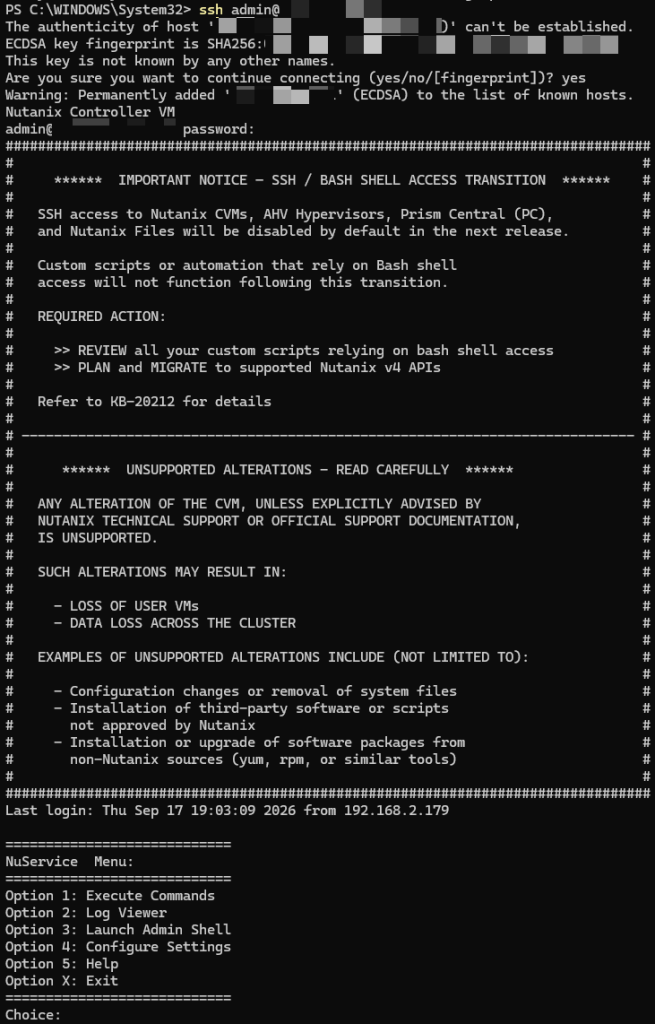
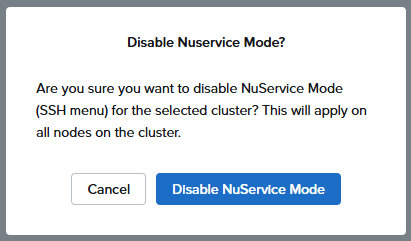
This is the number one vigilance point of this article. With AOS 7.5, you now have the option (and strong incentive) to totally disable SSH access to CVMs and AHV hosts.

On paper, this is excellent for security (“Security by Obscurity”). In operational reality, it is a violent cultural change. No more quick ssh nutanix@cvm to check a log or run a quick diagnostic script. Everything must go through APIs or the console.

Danger Warning! Before checking that “Disable SSH” box, check your migration procedures. The Release Notes are formal: disabling SSH breaks Cross-Cluster Live Migration (CCLM) workflows, whether in On-Demand mode (OD-CCLM) or Disaster Recovery (DR-CCLM). These operations still rely on SSH tunnels between source and destination hosts. If you cut SSH, your migrations will fail. You will have to re-enable SSH to make them work. This is a major operational constraint to anticipate.

Governance: vTPM & Guest Profiles

For highly sensitive environments, AHV now supports storing vTPM encryption keys in an external KMS. This allows centralizing key management and aligning the vTPM security policy with the cluster’s “Data-at-Rest” encryption policy.

On the quality of life side, I welcome the arrival of reusable Guest Customization Profiles. No more tedious copy-pasting of Sysprep scripts with every VM clone. You create a profile (Windows + NGT 4.5 min required), store it, and apply it on the fly to clones or templates. It’s simple, efficient, and avoids input errors.

Prism Central 7.5: The Interface That Makes Life Easier (NIM & Policies)

We finish this overview with Prism Central 7.5 (pc.7.5). If AOS is the engine and AHV the chassis, PC is the dashboard. And believe me, it is fleshing out considerably to save us from ungrateful manual tasks.

The Key Concept: Intelligent Orchestration

The major addition is the arrival of VM Startup Policies. This is a feature I’ve been waiting for for years to replace my cobbled-together startup scripts. Concretely, you can now define the exact restart order of VMs during an HA event (node failure) or a cluster restart.

This allows managing application dependencies cleanly: “Start the Database, wait for it to be UP, then start the Application Server”. It’s native, integrated into the interface, and greatly secures recovery plans.

For large-scale environments, note the appearance of NIM (Nutanix Infrastructure Manager). It is a new orchestrator designed to provision, configure, and manage your datacenters in a standardized way, aligning with the famous “Nutanix Validated Designs” (NVD). It is clearly oriented for very large deployments that want to avoid configuration drift.

Enhanced Resilience: PC Backup & Restore

Until now, restoring a crashed Prism Central could be an adventure, especially if the original cluster was itself down. Nutanix has lifted a major technical constraint: you can now recover a Prism Central instance from a backup located on any Prism Element cluster.

This is a detail that changes everything in case of a total site disaster. Previously, recovery from a Prism Element backup was restricted to the specific cluster where PC was registered. This new flexibility, coupled with the ability to backup to a generic S3 Object Store, makes the management architecture much more robust. We are no longer putting all our eggs in one basket.

Conclusion & Recommendations: Maturity Has a Price

After dissecting these three release notes, my feeling is clear: Nutanix is reaching an impressive level of maturity. The generalization of AES and the opening to external storage show that the platform is ready for the most demanding workloads and the most complex architectures.

However, as a “Prudent Ghost Writer,” I must raise a final red flag before you click “Upgrade.”

⚠️ Watch out for prerequisites: Do not rush headlong into the Prism Central update. Version pc.7.5 requires your Prism Element clusters to run at least AOS 7.0.1.9. If you are on an earlier version, deployment will be blocked. You will have to plan your migration path rigorously.

This is an unavoidable update for the performance and security gains, but it is also a structural update. The AES conversion, the potential SSH deactivation, and the new network dependencies for elastic storage require validating these changes in a pre-production environment.

Take the time to test, check your compatibility matrices, and above all, do not cut SSH before verifying that you do not have any planned inter-cluster migration (CCLM)!

To your keyboards, and happy upgrading!

Read More
nutanix ahv cli reference guide

In this new blog post, we’ll cover all the main Nutanix AHV CLI commands that allow you to perform some checks on your virtual machines using the command line.

All the commands in this article can be run via SSH from any CVM in the cluster.

Display the list of virtual machines

To display the list of virtual machines on the Nutanix cluster, simply run the following command:

acli vm.list

This will show you all the VMs present on the cluster, without the CVMs:

nutanix@NTNX-S348084X9211699-B-CVM:192.168.84.22:~$ acli vm.list
VM name VM UUID
LINUX 88699c96-11a5-49ce-9d1d-ac6dfeff913d
NTNX-192-168-84-200-PCVM-1760699089 f659d248-9ece-4aa0-bb0c-22a3b3abbe12
vm_test 9439094a-7b6b-48ca-9821-a01310763886

As you can see, I only have two virtual machines on my cluster:

  • My Prism Central
  • A newly deployed “LINUX” virtual machine
  • A test virtual machine

A handy command to quickly retrieve all virtual machines and their respective UUIDs. Now let’s see how to retrieve information about a specific virtual machine.

Retrieving Virtual Machine Information

To display detailed information about a virtual machine, use the following command:

acli vm.get VM_NAME

Using the example of my “LINUX” virtual machine, this returns the following information:

nutanix@NTNX-S348084X9211699-B-CVM:192.168.84.22:~$ acli vm.get LINUX
LINUX {
config {
agent_vm: False
allow_live_migrate: True
apc_config {
apc_enabled: False
}
bios_uuid: "88699c96-11a5-49ce-9d1d-ac6dfeff913d"
boot {
boot_device_order: "kCdrom"
boot_device_order: "kDisk"
boot_device_order: "kNetwork"
hardware_virtualization: False
secure_boot: False
uefi_boot: True
}
cpu_hotplug_enabled: True
cpu_passthrough: False
disable_branding: False
disk_list {
addr {
bus: "ide"
index: 0
}
cdrom: True
device_uuid: "fae2ee55-8736-4f3a-9b2c-7d5f5770bf33"
empty: True
iso_type: "kOther"
}
disk_list {
addr {
bus: "scsi"
index: 0
}
cdrom: False
container_id: 4
container_uuid: "2ead3997-e915-4ee2-b9a4-0334889e434b"
device_uuid: "f9a8a84c-6937-4d01-bfd2-080271c44916"
naa_id: "naa.6506b8def195dc769b32f3fe47100297"
storage_vdisk_uuid: "215ba83c-44cb-4c41-bddc-1aa3a44d41c7"[7] 0:python3.9* "ntnx-s348084x9211699-" 21:12 21-Oct-25 vmdisk_size: 42949672960
vmdisk_uuid: "42a18a62-861a-497a-9d73-e959513ce709"
}
generation_uuid: "9c018794-a71a-45ae-aeca-d61c5dd6d11a"
gpu_console: False
hwclock_timezone: "UTC"
machine_type: "pc"
memory_mb: 8192
memory_overcommit: False
name: "LINUX"
ngt_enable_script_exec: False
ngt_fail_on_script_failure: False
nic_list {
connected: True
mac_addr: "50:6b:8d:fb:a1:4c"
network_name: "NUTANIX"
network_type: "kNativeNetwork"
network_uuid: "7d13d75c-5078-414f-a46a-90e3edc42907"
queues: 1
rx_queue_size: 256
type: "kNormalNic"
uuid: "c6f02560-b8e6-4eed-bc09-1675855dfc77"
vlan_mode: "kAccess"
}
num_cores_per_vcpu: 1
num_threads_per_core: 1
num_vcpus: 2
num_vnuma_nodes: 0
power_state_mechanism: "kHard"
scsi_controller_enabled: True
vcpu_hard_pin: False
vga_console: True
vm_type: "kGuestVM"
vtpm_config { is_enabled: False
}
} is_ngt_ipless_reserved_sp_ready: True
is_rf1_vm: False
logical_timestamp: 1
state: "kOff"
uuid: "88699c96-11a5-49ce-9d1d-ac6dfeff913d"

As you can see, this returns all the information about a virtual machine. It is possible to filter some of the information returned with certain commands. Here are the ones I use most often:

acli vm.disk_get VM_NAME : to retrieve detailed information of all disks of a virtual machine

nutanix@NTNX-S348084X9211699-B-CVM:192.168.84.22:~$ acli vm.disk_get LINUX
ide.0 {
addr {
bus: "ide"
index: 0
}
cdrom: True
device_uuid: fae2ee55-8736-4f3a-9b2c-7d5f5770bf33
empty: True
iso_type: "kOther"
}
scsi.0 {
addr {
bus: "scsi"
index: 0
}
cdrom: False
container_id: 4
container_uuid: "2ead3997-e915-4ee2-b9a4-0334889e434b"
device_uuid: f9a8a84c-6937-4d01-bfd2-080271c44916
naa_id: "naa.6506b8def195dc769b32f3fe47100297"
storage_vdisk_uuid: 215ba83c-44cb-4c41-bddc-1aa3a44d41c7
vmdisk_size: 42949672960
vmdisk_uuid: 42a18a62-861a-497a-9d73-e959513ce709
}

acli vm.nic_get VM_NAME : to retrieve the detailed list of network cards attached to a virtual machine

nutanix@NTNX-S348084X9211699-B-CVM:192.168.84.22:~$ acli vm.nic_get LINUX
50:6b:8d:fb:a1:4c {
connected: True
mac_addr: "50:6b:8d:fb:a1:4c"
network_name: "NUTANIX"
network_type: "kNativeNetwork"
network_uuid: "7d13d75c-5078-414f-a46a-90e3edc42907"
queues: 1
rx_queue_size: 256
type: "kNormalNic"
uuid: "c6f02560-b8e6-4eed-bc09-1675855dfc77"
vlan_mode: "kAccess"
}

acli vm.snapshot_list VM_NAME : to retrieve the list of snapshots associated with a virtual machine

nutanix@NTNX-S348084X9211699-B-CVM:192.168.84.22:~$ acli vm.snapshot_list LINUX
Snapshot name Snapshot UUID
SNAPSHOT_BEFORE_UPGRADE e7c1e84e-7087-42fd-9e9e-2b053f0d5714

You now know almost everything about verifying your virtual machines.

For the complete list of commands, I invite you to consult the official documentation: https://portal.nutanix.com/page/documents/details?targetId=Command-Ref-AOS-v7_3:man-ncli-c.html

In the next article, we’ll tackle a big task: creating virtual machines using CLI commands.

Read More

In a previous article, we covered how to deploy and perform the basic configuration of a Palo Alto gateway to replace the basic gateway supplied with your OVHcloud Nutanix cluster.

I will now show you how to connect this gateway to the RTvRack supplied with your cluster to connect it to the internet.

Connecting the Gateway to the RTvRack

In “Network > Zones”, we start by creating a new “Layer3” zone, which we’ll call “WAN” for simplicity:

You can also create one or more other zones to connect your other interfaces (e.g., an “INTERNAL” zone).

Next, in “Network > Interfaces,” edit the ethernet1/1 interface. If you’ve successfully created your VM on Nutanix, it will correspond to the WAN output interface. It will be a “Layer3” interface:

On the “Config” tab, select the “default” Virtual Router and select the “WAN” security zone.

On the “IPv4” tab, add the available public IP address in the range provided to you by OVHcloud with your cluster, making sure to include a /32 mask at the end:

You can find the network information for your public IP address on your OVHcloud account in “Hosted Private Cloud > Network > IP”:https://www.ovh.com/manager/#/dedicated/ip

En fUsing the public IP address and its associated network mask, you can deduce:

The public IP address to assign to the WAN port of your gateway

The IP address of the WAN gateway

Example with the network 6.54.32.10/30:

Network address (not usable): 6.54.32.8
First address (public address of the PA-VM): 6.54.32.9
Last address: 6.54.32.10 (WAN gateway address)
Broadcast address: 6.54.32.11 (broadcast address)

Repeat the operation with the interface corresponding to the subnet of your Nutanix cluster, using the IP address of the gateway you specified when deploying your cluster.

However, make sure to set the mask corresponding to that of the network in which the interface is located as indicated in the documentation: https://docs.paloaltonetworks.com/pan-os/11-0/pan-os-networking-admin/configure-interfaces/layer-3-interfaces/configure-layer-3-interfaces#iddc65fa08-60b8-47b2-a695-2e546b4615e9.

In “Network > Virtual Routers”, edit the default router. You should find your “ethernet1/1” interface at a minimum, as well as any other interfaces you may have already configured:

Then, in the “Static Routes” submenu, create a new route with a name that speaks to you, a destination of 0.0.0.0/0, select the “ethernet1/1” interface and as Next Hop the IP address of the public network gateway provided to you by OVHcloud:

Finally, go to the “Device > Setup > Services” tab and edit the “Service Route Configuration” option in “Services Features” to specify the output interface and the associated /32 IP address for some of the services:

The list of services to configure at a minimum is as follows:

  • DNS
  • External Dynamic Lists
  • NTP
  • Palo Alto Networks Services
  • URL Updates

You can validate and commit. Your PA-VM gateway is now communicating with the OVHcloud RTvRack. All that’s left is to finalize the configurations to secure the installation and create your firewall rules to allow your cluster to access the internet.net.

Read More
nutanix on ovhcloud hosted private cloud

In this article, I share my complete feedback on the complete reinstallation of a Nutanix cluster at OVHcloud.

Once logged in to the OVHcloud management interface, go to “Hosted Private Cloud”:

In the left drop-down menu, click on the cluster you want to redeploy:

On the page that appears, click on “Redeploy my cluster”: 

Click on “Continuer” :

Automatic redeployment

The first option is to revert to the default settings provided by OVHcloud to completely reinstall the cluster in its basic configuration:

A summary of the settings is displayed before you finally confirm the reinstallation of your cluster:

Custom redeployment

You can fully customize your cluster’s IP network configuration during its installation phase. When choosing the cluster deployment method, select “Customize configuration” and click “Next”:

Fill in the various fields with the information you want to assign to your cluster and click on “Redeploy”:

Type “REDEPLOY” in the field provided and click “Confirm” to start the reinstallation procedure:

On your cluster’s overview page, a message indicates that cluster redeployment is in progress: 

All that’s left is to wait until the cluster is completely redeployed. All the basic configurations are already done, you just have to finalize the specific ones such as authentication, SMTP relay, monitoring, etc.

Read More
nutanix ahv cli reference guide

In the Maxi Best Of Nutanix CLI series, the previous two articles covered checking the network configuration of a Nutanix cluster and managing subnets.

In this new article, we’ll cover managing storage containers via CLI commands on your Nutanix clusters…

All the commands in this article must be executed from one of the cluster’s CVMs and work on a cluster running AOS 6.10+.

Check the containers

To check the status of your storage containers, the simplest command is:

ncli container list

This command will allow you to display all the information related to all the containers in your cluster.

If you want to display a specific container, you can pass the name (the simplest method) or the ID of your container if you have it as a parameter:

ncli container list name=NAME
ncli container list id=ID

Finally, one last command to display only the usage statistics of your containers:

ncli container list-stats

Renaming a Container

To rename a storage container, it must be completely empty.

Renaming a storage container can be done using the following command:

ncli container edit name=ACTUALNAME new-name=NEWNAME

On the default container, this would give for example the following command:

ncli container edit name=default-container-21425105524428 new-name=ntnx-lab-container

WARNING: There are two containers created by default when deploying your cluster: “SelfServiceContainer” and “NutanixManagementShare”. Do not attempt to rename them!

Creating a Container

It’s also possible to create storage containers using the CLI:

ncli container create name=NAME sp-name=STORAGE-POOL-NAME

The “name” and “sp-name” parameters are the only required parameters when running the command. This will allow you to create a base container on the selected storage pool with the following parameters:

  • No data optimization mechanism
  • No restrictions/reservations
  • The default replication factor

But the container creation command can be very useful if you need to create storage containers in batches, for example, if you’re hosting multiple clients on a cluster, each with an allocated amount of storage space!

For example, to create a storage container with the following parameters:

  • Container name “client-alpha”
  • Reserved capacity: 64GB
  • Maximum capacity: 64GB
  • With real-time compression enabled

Here’s the command you would need to run:

ncli container create name=client-alpha res-capacity=64 adv-capacity=64 enable-compression=true compression-delay=0 sp-name=default-storage-pool-21425105524428

A container with the associated characteristics will then be created:

Modifying Container Settings

An existing container can also be modified. You can modify almost everything in terms of settings, from data optimization mechanisms to reserved/allocated sizes, replication factors, and more.

For all the settings, please refer to the official documentation (link at the bottom of the page).

Deleting a Container

Deleting a container is quite simple, but requires that all files stored within it be deleted or moved first. Deleting a container is done using the following command:

ncli container remove name=NAME

It may happen that despite deleting or moving your VM’s vdisks, the deletion is still refused. This is often due to small residual files.

You must then add the “ignore-small-files” parameter to force the deletion:

ncli container remove name=NAME ignore-small-files=true

For example:

ncli container remove name=ntnx-lab-container ignore-small-files=true

WARNING: There are two containers created by default when deploying your cluster: “SelfServiceContainer” and “NutanixManagementShare”. Do not attempt to delete them!

Official Documentation

To learn more about some of the command options presented, please consult the official documentation: https://portal.nutanix.com/page/documents/details?targetId=Command-Ref-AOS-v6_10:acl-ncli-container-auto-r.html

Read More
nutanix ahv cli reference guide

In the previous blog post on the Maxi Best Of Nutanix CLI menu, I presented you with the best commands for checking the entire network configuration of your Nutanix cluster.

In this new article, we’ll now see how CLI commands can help us create or modify networks in our Nutanix cluster…

All the commands in this article must be executed at one of the CVMs in the cluster.

Creating an Unmanaged Subnet on Nutanix AHV

To create a new unmanaged subnet (without IPAM) across the AHV cluster, the command is very simple:

acli net.create NAME vlan=VLAN_ID

Replace:

  • NAME with the name you want to assign to your subnet
  • VLAN_ID with the VLAN ID

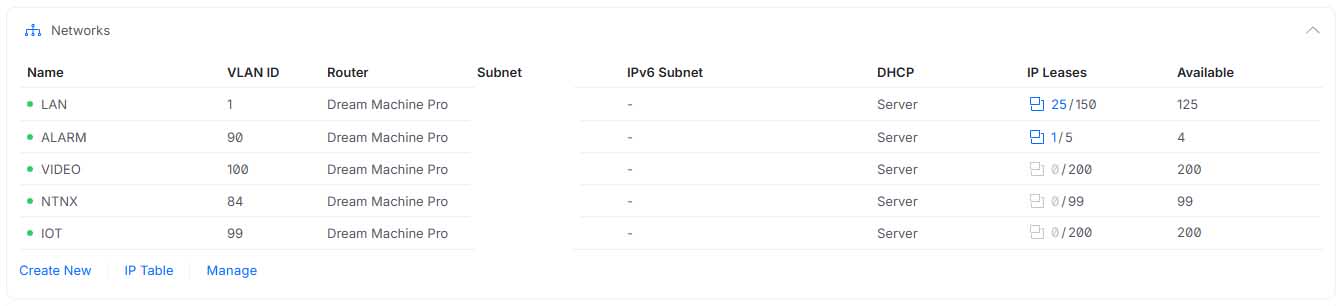
Here’s an example command that creates the VLAN “NUTANIX” with the VLAN vlan id “84” :

acli net.create NUTANIX vlan=84

By default, the vlan will be created on the vswitch “vs0” but if you want to create it on another virtual switch, you can specify it as a parameter:

acli net.create NAME vlan=VLAN_ID virtual_switch=VSWITCH

In this case, replace:

  • NAME with the name you want to assign to your subnet
  • VLAN_ID with the VLAN ID
  • VSWITCH with the name of the bridge on which you want to create the subnet

Here is an example of a command that allows you to create the “NUTANIX” VLAN with comme vlan id “84 sur le vswitch “vs0” :

acli net.create NUTANIX vlan=84 virtual_switch=vs0

You can then run the “acli net.list” command and check that your new subnet appears in the list.

Creating a Managed Subnet on Nutanix AHV

This command creates a new managed subnet (using IPAM) across the AHV cluster with basic gateway and subnet mask options.

acli net.create NAME vlan=VLAN_ID virtual_switch=vs0 ip_config=GATEWAY/MASK

Replace:

  • NAME with the name you want to assign to your subnet
  • VLAN_ID with the VLAN ID
  • vs0 with the name of the bridge on which you want to create the subnet
  • GATEWAY with the IP address of the subnet’s gateway
  • MASK with the subnet mask

Here is an example of a command that creates the VLAN “NUTANIX” with a vlan id “84” on the vswitch “vs0”, with a gateway address “10.0.84.254” on the network “10.0.84.0/24”:

acli net.create NUTANIX vlan=84 virtual_switch=vs0 ip_config=10.0.84.254/24

Deleting an Existing Subnet

Deleting an existing subnet on a Nutanix AHV cluster is easy! Simply run the following command:

acli net.delete NAME 

You must replace NAME with the name of the subnet you wish to delete, which would give, for example, for the previously created subnet:

acli net.delete NUTANIX

Nothing could be simpler!

Bulk Subnet Creation/Deletion

To make it easier to import large quantities of subnets, I created several CSV files that I can then convert into a list of commands to create multiple subnets in batches.

Everything is on my Github: https://github.com/Exe64/NUTANIX

For unmanaged subnets: https://github.com/Exe64/NUTANIX/blob/main/nutanix-unmanaged-subnets.csv

For managed subnets: https://github.com/Exe64/NUTANIX/blob/main/nutanix-managed-subnets.csv

For deleting subnets: https://github.com/Exe64/NUTANIX/blob/main/nutanix-subnets-delete.csv

To learn more about using these files, I invite you to consult my dedicated article:

Official Documentation

Complete command documentation is available on the publisher’s official website: https://portal.nutanix.com/page/documents/details?targetId=Command-Ref-AOS-v6_10:man-acli-c.html

Read More
nutanix ahv cli reference guide

Whether you need to perform specific or repetitive operations, troubleshoot, or gain a more detailed view, the CLI commands for a Nutanix cluster will be your best allies.

In this article, I offer a summary of the best commands for performing all network configuration checks on a Nutanix cluster, whether at the cluster, host, CVM, or virtual machine level.

You must have an AOS 6.10+ cluster to execute some commands of this guide.

A. Using Nutanix acli commands from any CVM in the Nutanix AHV cluster

List the status of the host interfaces:

acli net.list_host_nic 192.168.84.11 @IP_HOST_AHV 

Result:

List all vSwitches currently configured on the cluster:

acli net.list_virtual_switch 

Result:

You can list the configuration of a particular vSwitch by passing it as an argument to the command:

acli net.list_virtual_switch vs1

List all subnets created on the cluster:

acli net.list 

Result:

List the VMs attached to a particular subnet:

acli net.list_vms SUBNET

B. Via the Nutanix manage_ovs script from any CVM in the Nutanix AHV cluster

List the interface status of an AHV host:

manage_ovs show_interfaces

Result:

You can also list the interface status of all hosts in the cluster:

allssh "manage_ovs show_interfaces"

List the status of an AHV host’s uplinks (bonds):

manage_ovs show_uplinks

Result :

You can also list the uplink (bond) status of all AHV hosts in the cluster:

allssh "manage_ovs show_uplinks"

Display LLDP information of an AHV host’s interfaces:

manage_ovs show_lldp

Result:

You can also view LLDP information for the interfaces of all AHV hosts in the cluster:

allssh "manage_ovs show_lldp"

Show currently created bridges on an AHV host:

manage_ovs show_bridges

Result :

You can also view the bridges currently created on all AHV hosts in the cluster:

allssh "manage_ovs show_bridges"

Show the mapping of CVM interfaces to those of AHV hosts:

manage_ovs show_cvm_uplinks_map

Result :

You can also view the interface mapping of CVMs on all AHV hosts in the cluster:

allssh "manage_ovs show_cvm_uplinks_map"


C. Using the Open vSwitch command from any host in a Nutanix AHV cluster

List the existing bridges of an AHV host:

ovs-vsctl list-br

Result :

List all interfaces attached to a particular bridge of an AHV host:

ovs-vsctl list-ifaces br0

Result:

Display the configuration of an AHV host’s port bond:

ovs-vsctl list port br0-up

Result :

Display the configuration and status of a bond on an AHV host:

ovs-appctl bond/show br0-up

Result:

Display information about the status of a LACP-configured bond on an AHV host:

ovs-appctl lacp/show br1-up

Many thanks to Yohan for the article idea and the helping hand!

Read More