
Team Leader - Nutanix Technology Champion - Nutanix NTC Storyteller

Julien DUMUR
Infrastructure in a Nutshell

This is a problem many people encounter when first deploying a virtual machine on Microsoft Windows: storage detection.

I’ll show you how to deploy a Windows virtual machine on Nutanix AHV.

Prerequisites

To begin, download the VirtIO ISO image from the Nutanix Support website (registration required): https://portal.nutanix.com/page/downloads?product=ahv

Remember to select “VirtIO” from the drop-down menu at the top of the page, then download the “Nutanix VirtIO for Windows (iso)” version:

Once the ISO image is downloaded, you need to transfer it to the cluster.

Now let’s move on to deploying the virtual machine.

Creating the virtual machine under Prism Element

Log in to the Prism Element web interface of your Nutanix cluster, then select “VM” from the menu:

On the virtual machine management page, click “Create VM” in the top right corner:

In the window that appears, there are a number of fields to fill in:

In order:

  • Virtual machine name
  • Time zone
  • Amount of vCPUs
  • Amount of RAM

Next, you need to add one or more disks:

For each type of disk you want to add, you will need to select the appropriate options:

In the case of our VM, we’ll add:

  • 1 40GB disk for the operating system
  • 1 CD-ROM with the Windows ISO
  • 1 CD-ROM with the VirtIO ISO

You should have 3 disks at this point:

Adding a network adapter is the last step before finalizing the creation of the virtual machine:

If you’re unsure how to add new networks to your cluster, I recommend reading my article on the subject:

The machine is now created, and you can proceed with its deployment.

Creating the Virtual Machine in Prism Central

To create the VM in Prism Central, go to the “Infrastructure > Compute > VMs” menu:

Then click on “Create VM” to access the VM creation menu:

The fields to be filled in remain generally similar to those you can find under Prism Element, although organized slightly differently:

And spread over several tabs:

Since the process is generally identical, I won’t go into detail about all the steps. One notable difference: the ability to assign one or more categories to our VM upon creation:

The last tab allows you to check all the information that we have just configured:

Deploying the Virtual Machine

To deploy the virtual machine, boot it and launch the console. The first step is to choose the language:

Then click on “Install now”:

Then select the version you want to install:

Accept the license agreement:

Now click on “Custom…”:

Damn! The hard drive you configured when creating the virtual machine is not showing up… Click “Load a driver” to fix this problem:

Click on “Browse”:

Now navigate to the directory corresponding to the version of Windows you are deploying, in my case Windows Server 2022:

Select all drivers from the list and click “Next”:

Once the driver installation is complete, the disk finally appears:

The installation is launched, all you have to do is wait:

Your virtual machine is deployed!

Read More

Since not everyone is lucky enough to have clusters on which to do their tests in the company, creating your homelab to be able to test and manipulate or even host services can be a serious alternative. But it is never an easy thing and it can often be expensive…

What use?

Having your own homelab under Nutanix CE is one thing, having the use of it is another. The first question you must ask yourself is: a homelab under what to do?

Is the purpose of your cluster to carry out tests with ephemeral virtual machines to improve your skills and discover new technologies? Or to host services for you, your family and other people? Will you need to back it up? Or to have redundancy? Do you have a lot or on the contrary little space to host it?

These are all questions to ask yourself in advance. It is obvious that depending on the answers to all these questions, the architecture and sizing of your homelab will not be the same. Another element to take into account: the electricity consumption which can represent a significant operating cost.

For my part, the main interest of having my homelab under Nutanix is ​​to be able to test new things and to improve my skills on a technology that I particularly like.

Sizing your homelab

Depending on the answers you have given to the various questions concerning the intended use of your homelab, you should start to have an idea of ​​what architecture and sizing you need.

In order to give a little more substance to the sizing part, it is important to take a look at the prerequisites necessary for installing a 1-node cluster under Nutanix CE 2.1:

  • a processor with at least 4 cores and embedded virtualization technology
  • 32Gb of RAM (64Gb recommended)
  • a 1Gb network card
  • 1 disk of at least 32Gb for the hypervisor
  • 2 disks for the data

If you plan to set up a cluster with several nodes, be aware that each node in the same cluster will have to be similar in terms of configuration.

Obviously, the more virtual machines you want to host or features you want to activate on Nutanix, the more resources you will need, thus increasing costs.

Setting up your homelab

Option 1: recovery

An often forgotten option for setting up your homelab is the recovery of old hardware to create a new infrastructure under Nutanix CE. Indeed, it often happens that companies get rid of their old equipment by simply throwing it away or reselling it at a low price.

This is often an ideal opportunity to recover an old server capable of running Nutanix CE 2.1, even if it means transforming several servers into a single, somewhat muscular one.

For my part, this is the option I chose for my Nutanix CE 2.1 cluster because I was lucky enough to be in this situation during one of my previous professional experiences.

Option 2: used servers

If the company has decided to resell its old equipment to brokers, you can find these servers on sales sites specializing in reconditioning.

There are plenty of them on the Internet, with quite disparate stocks and prices, I am thinking in particular of:

These sites allow you to build some pretty edgy configurations for a homelab at often reasonable prices. For example, a SuperMicro chassis can be negotiated for less than 600 euros:

On the configuration side, we will find:

  • an Intel Xeon E5-2697A 16-core processor @ 2.60GHz
  • 128Gb of RAM
  • 4 512Gb SDD
  • onboard RJ45 network ports
  • a dual power supply

The only constraint will be to add a SATA disk of about 64Gb to install the hypervisor (count about 40 euros) if you do not want to use a 512Gb disk unnecessarily. Note that you can even upgrade the configuration in the future by adding disks or RAM.

The 2 big drawbacks of this type of server are:

  • the noise (good luck negotiating to have it in the house)
  • the format because it is a bit restrictive to install

Option 3: NUC type PCs

With their small format and often the silence that characterizes them, NUCs are ideal candidates for setting up a homelab at home. If we can find NUCs with processors capable of running correct infrastructures, it is at the level of RAM and storage that the shoe pinches.

Indeed, RAM is most of the time limited to 32Gb without the possibility of expansion, which can quickly prove insufficient depending on the use to which you dedicate your cluster. On the storage side, most of the time NUCs only offer an additional port allowing you to connect a disk in addition to the basic embedded one where Nutanix requires 3. A workaround can be to deploy the hypervisor on a fast USB key connected via USB3.

The other disadvantage is the cost of this type of machine which is often at the same level as a used server but with much lower hardware configurations and power consumption.

Option 4: Assembled PC

The last viable option in my eyes is assembling a more traditional PC from A to Z. This will allow you to select each component of your server and thus be able to have a truly personalized cluster.

From the Grand Tour case to the mini ITX case, you will also have the choice of format, which can be practical if you only have a small space to install your equipment (example: the cupboard in the entrance where the Internet box is located).

In terms of cost, depending on the configuration chosen, it should not be much higher than that of a refurbished server or a NUC with moderate power consumption.

Conclusion

I hope that you will see more clearly in the path that will lead you to the start of your homelab. Be aware that apart from having substantial financial means, there is no miracle solution to setting up a lab and it is often a question of opportunities that will present themselves to you. Take the time to think carefully and explore all possible avenues before you start.

Read More

This is a question I am regularly asked: “with which cluster do you perform your tests for your articles?”. So here is what my Nutanix homelab looks like…

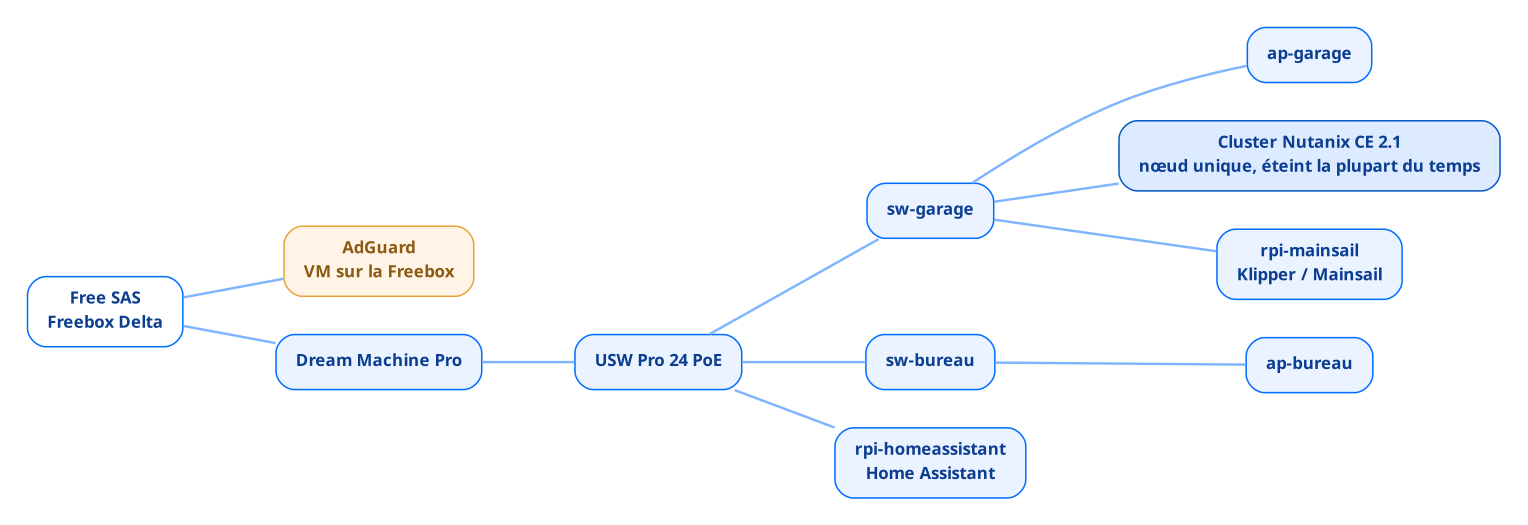
My network infrastructure

Before talking about my Nutanix cluster, I will present my home infrastructure that I installed 4 years ago when the house was built.

I based my network infrastructure on Ubiquiti brand equipment. The hardware is very good, silent, robust, easy to use… but for the configuration it is really very particular and we are very far from what we are used to practicing on a daily basis in a data center.

So I set up:

a Ubiquiti Dream Machine Pro for the entire network / filtering part with

  • 2 SFP+ 10Gb ports
  • 8 1Gb ports

a Ubiquiti USW Pro 24 PoE switch which has

  • 2 10Gb SFP+ ports
  • 24 1Gb PoE ports

Ubiquiti Flex switches in various parts of the home

My internet access is currently a Free connection which relies on the Freebox Delta and which offers me a theoretical speed of 10Gb/s:

On the program:

  • a 10Gb fiber arrival
  • 4 RJ45 ports in 1Gb (B, C, D, E)
  • 1 SFP+ 10Gb port (F)

A well-stocked box to allow latency-free Internet access.

The network topology therefore looks like this:

As you can see, no professional type infrastructure at home so if you only have consumer type equipment, don’t hesitate to get started, it will do the trick.

My Nutanix cluster

My Nutanix cluster is nothing exceptional, it is quite old hardware since it is based on an Intel S2600WTTR chassis that was launched by the manufacturer in 2016!

Link to the technical sheet: https://www.intel.fr/content/www/fr/fr/products/sku/88281/intel-server-board-s2600wttr/specifications.html

I recovered it in a previous professional experience, the cluster had a hardware failure that the administration did not want to deal with given the age of the hardware and the fact that the existing infrastructure was being replaced by brand new Nutanix clusters.

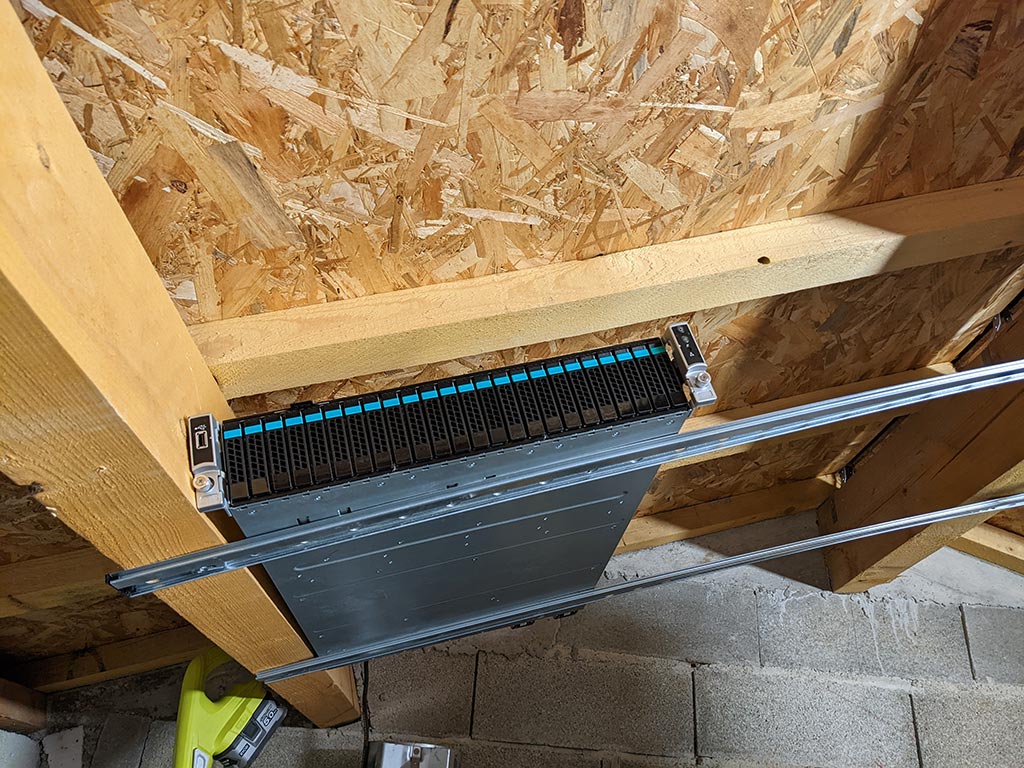
I carried out the repair at my own expense so that the server would be operational again. In terms of the physical installation, the cluster is not allowed to stay in the house (due to noise), so it is in the garage, installed in an unconventional way:

The hardware configuration of my cluster is as follows:

  • 2 Intel Xeon E5-2640 v4 @ 2.4Ghz processors
  • 384 Gb of RAM
  • 1 120Gb SDD for the OS
  • 4 800Gb SAS SDDs
  • 6 1.6Tb SAS HDDs
  • 2 10Gb RJ45 network ports

This hardware configuration allows me to have disk redundancy. This is not the ideal scenario but it is already much better than no redundancy at all. The amount of CPU / RAM allows me to faire tourner un grand nombre de machines virtuelles sans que les performances ne soient dégradées :

If I had to make a hardware change to my cluster, I think I would opt for a 10Gb fiber network card in order to have a 10Gb connection from one end of the chain to the other Internet > Router > Firewall > Switch > Cluster.

The cluster is now installed with a Nutanix CE 2.1 in the latest versions available:

This allows me to test the latest features, to perform configuration tests and it also serves as a support for writing all the blog articles, each subject covered being obviously tested on the Lab before publication.

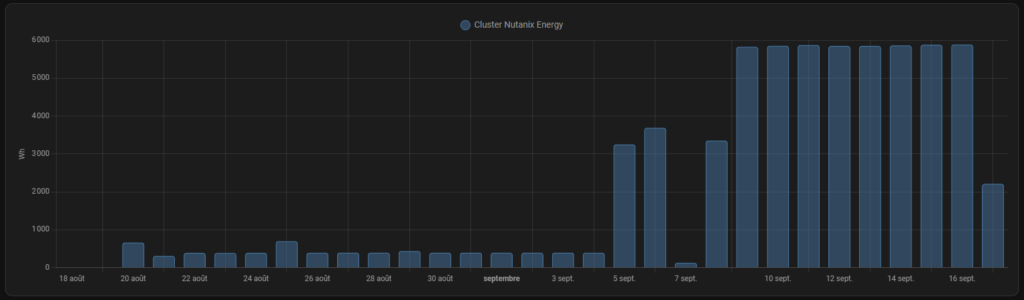
Although the Lab is essential for writing my articles, I do not leave it on permanently because it consumes a significant amount of electricity as I already mentioned in one of my previous articles.

That’s my infrastructure, hoping that it makes you want to get started and set up your own Nutanix CE cluster.

Read More
Nutanix Blog Header

After a successful installation of Nutanix AHV, all passwords configured on the cluster are the default passwords “nutanix/4u” and it is imperative to change them for maximum security.

Recommendations regarding passwords complexity

You must choose strong passwords to secure your infrastructure and that they are unique!

The minimum complexity required by Nutanix is:

  • 8 characters
  • 1 lowercase letter minimum
  • 1 uppercase letter maximum
  • 1 number minimum
  • 1 special character

Some cluster passwords will also require you to respect certain constraints related to the password history.

Generally speaking, I would recommend that you use a password generator often integrated into your password management software to create your passwords and apply a length of at least 16 characters while respecting the complexity rules indicated above.

Prism Element admin password

This step is essential and you cannot bypass it. If this is your first time logging in, the login is “admin” and the password is “nutanix/4u”. You will be ask to configure a new password respecting the complexity criteria.

CVM “Nutanix” password

If you leave the default password, you will have critical alert messages on your Prism Element interface.

To fix this, connect to the IP of one of the CVMs in your cluster in SSH with the nutanix identifier and the default password nutanix/4u. Then, a simple “passwd” will allow you to configure a new password:

nutanix@NTNX-99110c89-A-CVM:~$ passwd
Changing password for user nutanix.
Current password:
New password:
Retype new password:
passwd: all authentication tokens updated successfully.
nutanix@NTNX-99110c89-A-CVM:~$

Enter the current password, then the new password twice in a row and that’s it!

Hosts passwords

Just, after an installation the passwords of the Nutanix hosts are always the default ones and this will generate critical alerts on the cluster.

To change the “root” password of the hosts, connect to one of the CVMs and type the associated command:

nutanix@NTNX-99110c89-A-CVM:192.168.2.200:~$ echo -e "CHANGING ALL AHV HOST ROOT PASSWORDS.\nPlease input new password: "; read -rs password1; echo "Confirm new password: "; read -rs password2; if [ "$password1" == "$password2" ]; then for host in $(hostips); do echo Host $host; echo $password1 | ssh root@$host "passwd --stdin root"; done; else echo "The passwords do not match"; fi

The system will then ask you to enter the new password twice:

CHANGING ALL AHV HOST ROOT PASSWORDS.
Please input new password:
Confirm new password:
Host 192.168.2.199
Nutanix AHV
Changing password for user root.

To change the “admin” password of the hosts, connect to one of the CVMs and type the associated command:

nutanix@NTNX-99110c89-A-CVM:192.168.2.200:~$ echo -e "CHANGING ALL AHV HOST ADMIN PASSWORDS.\nPlease input new password: "; read -rs password1; echo "Confirm new password: "; read -rs password2; if [ "$password1" == "$password2" ]; then for host in $(hostips); do echo Host $host; echo $password1 | ssh root@$host "passwd --stdin admin"; done; else echo "The passwords do not match"; fi

The system will then ask you to enter the new password twice:

CHANGING ALL AHV HOST ADMIN PASSWORDS.
Please input new password:
Confirm new password:
Host 192.168.2.199
Nutanix AHV
Changing password for user admin.
passwd: all authentication tokens updated successfully.

To change the “nutanix” password of the hosts, connect to one of the CVMs and type the associated command:

nutanix@NTNX-99110c89-A-CVM:192.168.2.200:~$ echo -e "CHANGING ALL AHV HOST NUTANIX PASSWORDS.\nPlease input new password: "; read -rs password1; echo "Confirm new password: "; read -rs password2; if [ "$password1" == "$password2" ]; then for host in $(hostips); do echo Host $host; echo $password1 | ssh root@$host "passwd --stdin nutanix"; done; else echo "The passwords do not match"; fi

The system will then ask you to enter the new password twice:

CHANGING ALL AHV HOST NUTANIX PASSWORDS.
Please input new password:
Confirm new password:
Host 192.168.2.199
Nutanix AHV
Changing password for user nutanix.
passwd: all authentication tokens updated successfully.

Official resources

Passwords modifications : https://portal.nutanix.com/page/documents/kbs/details?targetId=kA00e000000LKXcCAO

Read More
Nutanix Prism Central PC.2024

After reinstalling my cluster with the latest version of Nutanix Community Edition, I ran into a problem deploying Prism Central.

Indeed, no compatible version is offered as standard for installation:

Problematic you might say! Indeed, and to solve it we will have to recover the binaries to continue the installation manually…

Downloading Prism Central binaries

To recover the Prism Central binaries, you must go to this page: https://portal.nutanix.com/page/downloads?product=prism and identify yourself with your MyNutanix account.

Then, look for the package “Prism Central 1-click deploy from Prism Element

( Version: pc.2024.1.0.2 )”:

Click “Download” and “Metadata” to retrieve the installation package and associated metadata.

Deploying Prism Central

Before starting the deployment of Prism Central, the “Data Service IP” of your cluster must be configured!

Once the download is complete, on the Prism Element home page, click “Register or create new” on the Prism Central widget:

Then click on “Deploy” on the window that appears:

Click on “Upload Installation Binary”:

Select the metadata and binary files you just downloaded and click “Upload”:

Please wait while the transfer is taking place:

Once the transfer is complete, select the package and click “Next”:

Then select the size of Prism Central you want to deploy and click “Next”:

For more information on the X-Small version, do not hesitate to consult my dedicated article: https://juliendumur.fr/nutanix-aos-6-8-ests-et-prism-central-x-small/

Enter the network configuration then click on “Next”:

The last window is new in the latest versions, I advise you to leave the default settings and click on “Deploy”:

A little patience during the deployment:

Once the deployment is complete, go to your Prism Central address and authenticate yourself with the usual default pair of identifiers:

The very first time you log in, you will be asked to set a new password:

Then log in with the new password you just configured. Then validate the conditions of use:

Keep Pulse enabled:

If, like me, you then notice that your cluster is still not registered on Prism Central, return to Prism Element and restart the procedure, this time selecting “Connect”:

Fill in the connection details for your Prism Central and validate to start the recording:

Congratulations, your Prism Central in PC.2024 version is now operational on your Nutanix cluster under AOS 6.8

Read More

To be able to deploy a virtual machine on your Nutanix cluster and have it reachable on your network, you will need to start by configuring the network(s) on your cluster.

Creating a network using Prism Element

Under Prism Element, in the “Settings > Network Configuration” menu is the list of all existing networks on the cluster, click on “Create Subnet”:

Then enter your network information, namely the name and vlan ID:

If you do not have a DHCP server, you can let Nutanix manage the addressing of the network created using the “Enable IP address management” option:

You will then need to complete all the options that would normally have been delivered by a traditional DHCP server:

Click “Save” once the settings are correct. Repeat for each VLAN you need on your infrastructure.

Creating a network using Prism Central

In Prism Central, network management is carried out in “Network & Security > Subnets”:

To add a new network, click “Create Subnet”:

It is then a form similar to that of Prism Element that must be completed by activating, or not, the “IP Address Management” option if you wish to leave the management of your addressing to Nutanix.

Official Nutanix documentation

Link to official documentation: https://portal.nutanix.com/page/documents/solutions/details?targetId=BP-2071-AHV-Networking:bp-ahv-network-management.html

Read More

To be able to deploy virtual machines on your cluster, you will need images that are available to launch your installations and here is the procedure to follow.

Before you start

An image uploaded via Prism Element can be imported to Prism Central. The reverse is not possible.

An image uploaded or imported via Prism Central is visible but not editable on Prism Element.

An image uploaded via Prism Element can only be used by the cluster to which it was uploaded.

An image downloaded via Prism Central can be used by all clusters managed by this Prism Central

Nutanix provides compatibility with images in the following formats:

  • RAW
  • VHD
  • VHDX
  • VMDK
  • VDI
  • OVA
  • ISO
  • QCOW2

Download via Prism Element

To upload an image via Prism Element, connect to the web interface using your credentials, then navigate to the “Settings > Image Configuration” menu:

Click Upload Image:

Complete the “Name”, “Image Type”, “Storage Container” fields, select the image you wish to transfer then click on “Save”:

Wait during the transfer and then while your image is processed by the cluster. Its status must be “ACTIVE” for it to be operational:

Download via Prism Central

The process for transferring an image through Prism Central is essentially identical to that of Prism Element.

Connect to the web interface then navigate to “Compute & Storage > Images” and click on “Add Image”:

Click on “Add File”, select the image you want to transfer, fill in the description then click on “Next”:

On the next screen, select the image placement mode based on your environment. In most cases, the default method “Place image directly on clusters” will do the trick, click “Next”:

Wait while the cluster transfers and processes the image.

Import images from Prism Element to Prism Central

On the image management page on Prism Central, click “Import Images”:

Then select the transfer method that suits you:

“All images” will repatriate all the images from all the clusters managed by Prism Central

“Images on a cluster” will allow you to select the cluster(s) and source image(s) on a case-by-case basis.

Official Nutanix documentation

Link to official documentation: https://portal.nutanix.com/page/documents/details?targetId=Web-Console-Guide-Prism-v6_7:wc-image-configure-acropolis-wc-t.html

Read More

For a client file, our boss asked us during the “Thursday meeting” to find a solution to migrate the client’s infrastructure physically, from point A to point B because it has undersized internet access. not allowing a site-to-site migration. Ideas flowed, some quite good, others really crazy, we had a little time to think but it had to be easily transportable, see that it could travel by plane in the hold… Here is the genesis of the MikadoBox.

Sofa R&D (or almost)

The following Saturday, stuck in queues at Spirou Park, I received an SMS from Louis Xavier (LX for short), my CTO, probably slumped on his sofa. Having must have sensed my distress despite the distance from the amusement park, he informed me that he had found the perfect format for a system transportable in a backpack: a Lenovo M80q.

And it was there, while I was breaking down under the effect of waiting and the kids screaming with excitement around me, that I told him that we could totally take 3 and put together a complete cluster in a suitcase:

Pandora’s box was ajar, and we both rushed to open it wide to see what might come out…

Theoretical design

Now that we had this idea for a portable cluster, we had to make a shopping list to get an idea of the total weight (it had to remain transportable).

DISCLAIMER: this type of cluster is not intended to accommodate PROD. This is why we have allowed ourselves not to respect certain Nutanix prerequisites.

In terms of hardware, here is an essential prerequisite for setting up a Nutanix cluster as we imagined:

  • 3 to 4 nodes
  • 1 switch (8 or 16 ports max, 10G uplink)
  • 1 rack-mountable socket rail

As a bonus, we also wanted a 4G router so that we could start the MikadoBox from almost anywhere and have it functional and accessible remotely.

Based on this list, and the fact that we absolutely wanted something visually attractive, we had to find a system allowing us to rack up all the equipment and do a minimum of “cable management” so that it was as clean as possible.

Looking for a rackable case

On the Thomann website, I remembered seeing solutions for racking up sound equipment when I was looking for a bay for the home that wouldn’t take the place of a 42U bay. The width is the same as a computer bay but it is possible to find ones of only a few U.

On paper, it’s not bad:

  • possibility of racking 3U or more (available in several sizes)
  • accessible front and rear
  • handles for transport
  • limited space

But to travel by plane, there is no protection for splashes of water, shocks on the front/rear faces of the cluster, the material is clearly visible to those who will handle it… This is not the case. is not optimal.

The second idea was a “Flyhtcase” type suitcase.

The wheels for transport are great! On the other hand, in terms of size, many models do not fit in a car trunk, and there is generally no mounting rail…

LX then had a brilliant idea: a Gator suitcase.

This suitcase met all our criteria:

  • reasonable size
  • solidity
  • transportable
  • internal mounting rails
  • removable front/rear panel

We had our data center on wheels, all we had to do was fill it.

Racks and options

The new challenge that awaited us was to find solutions to fit all the material that we had retained in the MikadoBox.

The switch, a priori of a U height, would be, whatever the model, either full or half width with the appropriate fixings, so no problem. The 4G router would not have any mounting provided. It would be necessary to provide a shelf or a system that allows it to be positioned so that it is both accessible and fixed in the box.

For the 3 or 4 Lenovo nodes, we had to find a fixing system. While searching the internet, I came across Reddit posts that showed “homelabs” with racked Lenovo Tinys. Since I have a 3D printer, I searched around a bit and ended up finding some STL files that might have been suitable for us.

The disadvantage of 3D printing a rack intended for travel is its lack of resistance. I was very worried that it wouldn’t hold. So I continued searching and ended up finding an Austrian rack system designed for the Lenovo M80q:

Drawer-mounted (optional), rack-mountable, and the icing on the cake: there is a customizable version that would allow us to bring the connections back to the front! These racks are impeccable since they include optional rails to transform the fixed rack into a drawer.

In terms of the arrangement in the box and taking into account the quantity of material that we wish to integrate, here is what we have imagined:

The front is free once the case is opened, as is the rear which allows a flow of air through when the cluster is in operation. Once closed, the case fully protects the cluster without having to disassemble anything, you just need to put away the power cable.

Now that everything is settled from a theoretical point of view and in terms of space, all that remains is to move on to practice…

A small but strong cluster

Configuration level, the nodes are customizable within reason given their extremely small size and restricted hardware slots.

However, the cluster configuration is nothing to be ashamed of:

  • 48 Hearts
  • 256Gb RAM (CVM 20Gb each)
  • a raw storage space of 18Tb or 9Tb useful with an RF2 cluster!

So no, you won’t run an entire large infrastructure, but it can still do the job for certain use cases…

The assembly of the MikadoBox was carried out by LX, his sofa being very far from my cottage, and everything fits perfectly in the box for a weight of around 20kg!

Use cases selected

In terms of use cases, here are some examples of use of the MikadoBox:

  • POC (Nutanix / HYCU / Supervision), perfect for doing demos like at .NEXT Nutanix Paris 2023 for example
  • Crisis BCP
  • Infrastructure migration from point A to point B when network usage is not possible
  • Homelab

You will have understood, and taking into account the tests carried out, we are far from a gadget but much closer to a real cluster such as one could find in a data center.

If you would like to learn more, be sure to keep an eye on mikadolabs.com in the coming days! An article on the installation, configuration and benchmarks of the platform is currently being written.

Read More

As mentioned in my previous article, the Nutanix Community Edition 2.0 has just been made available by the publisher. This is the perfect opportunity to install or update your cluster.

Read More

More than 2 years after the last version of the Nutanix Community Edition, the publisher gives us a v2.0 which will bring its share of new features!

Read More