Nutanix Technology Champion - Nutanix Solution Architect

Julien DUMUR
Infrastructure in a Nutshell

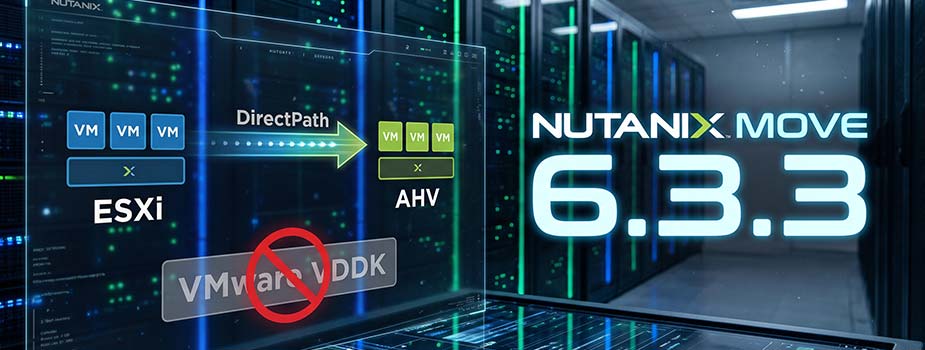
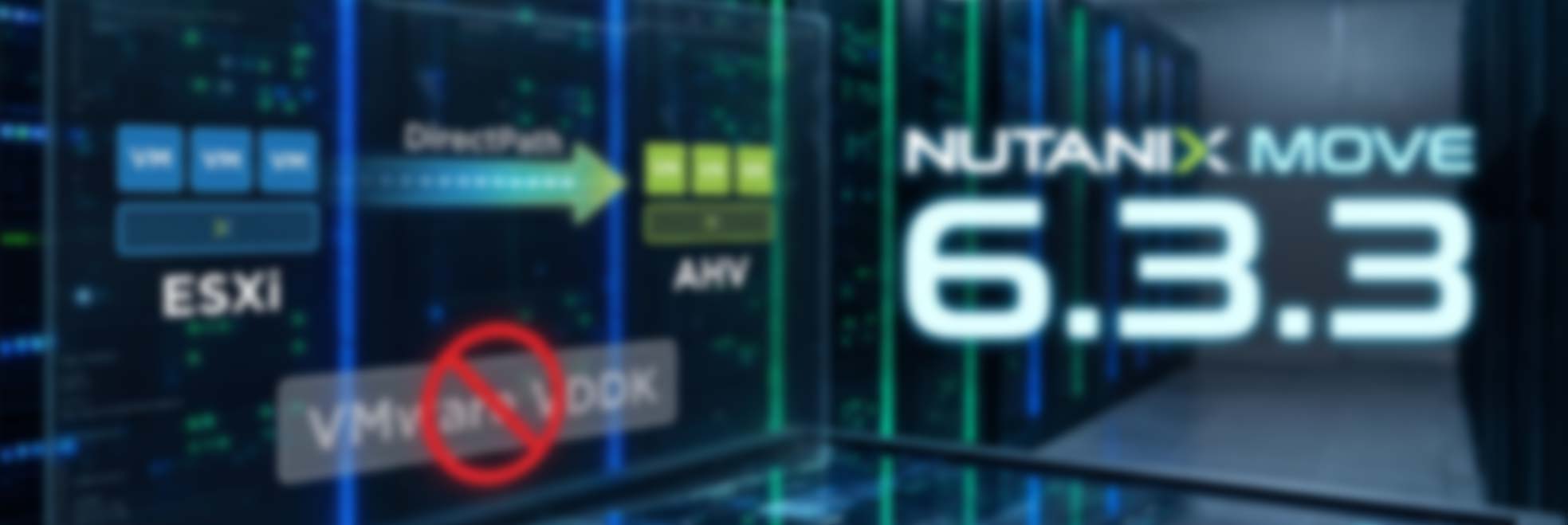
Nutanix Move 6.3.3 was released on October 12, 2026 and brings a new migration method, DirectPath, which migrates virtual machines from ESXi to AHV without the VMware VDDK. In this article, I go through what the release notes contain, including what you should know before downloading the appliance.

DirectPath: ESXi to AHV migration without VDDK

The VDDK (Virtual Disk Development Kit) is the VMware library Move relied on to read the disks of virtual machines hosted on ESXi. Since Move 5.30, you had to download it yourself from Broadcom and upload it into the appliance, which I covered in my article Nutanix Move 5.30+: Download VMware VDDK Files!.

I watched that download close step by step: first open to anyone who registered, then restricted to customers and partners, then to partners only, and finally blocked altogether. Migrating away from VMware was apparently not one of the use cases Broadcom wanted to encourage.

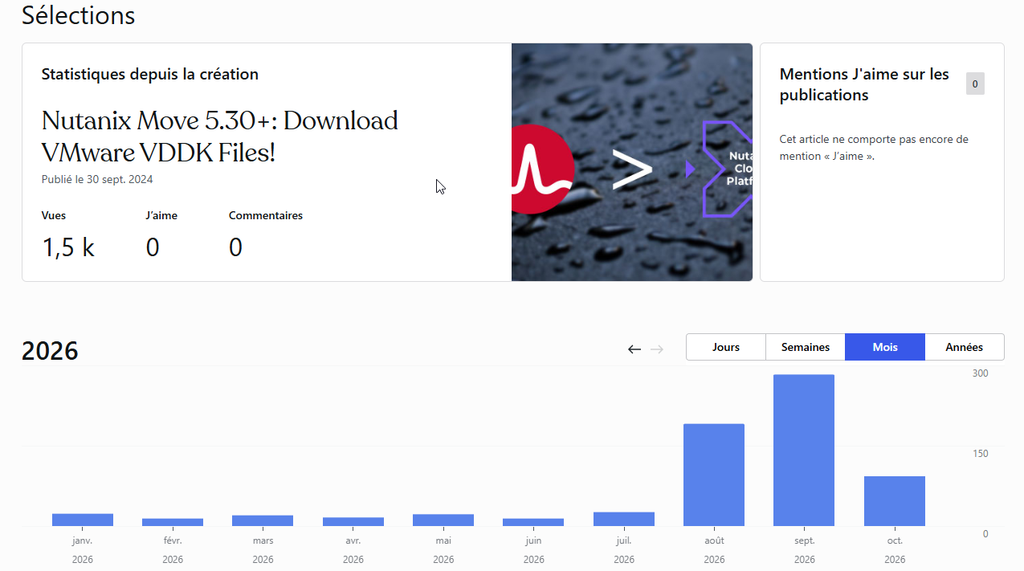
The stats of that article tell the story: it was sitting at 19 views per month on average from January to July 2026, then reached 191 in August and 283 in September, its best month since it was published.
With Move 6.3.3, the problem goes away. The release notes describe DirectPath as a method that directly transfers VM disk data from ESXi to AHV, “eliminating the requirement for VMware Virtual Disk Development Kit (VDDK)”. They say nothing more about how it works, and since I have not deployed this version in my lab yet, I am not going to make it up.

Move 6.3.3 cannot be upgraded, it has to be redeployed

The release notes state it in an “Important” box: “Nutanix Move 6.3.3 supports new deployments only. You cannot upgrade to or from this version.” Your current appliance will therefore not move to 6.3.3, and the “to or from” means that the one you deploy today will not upgrade to the next version either.

On the Nutanix portal, the 6.3.3 download page currently offers a single appliance file, “Move OVA file for ESXi”, with no dedicated AHV image:
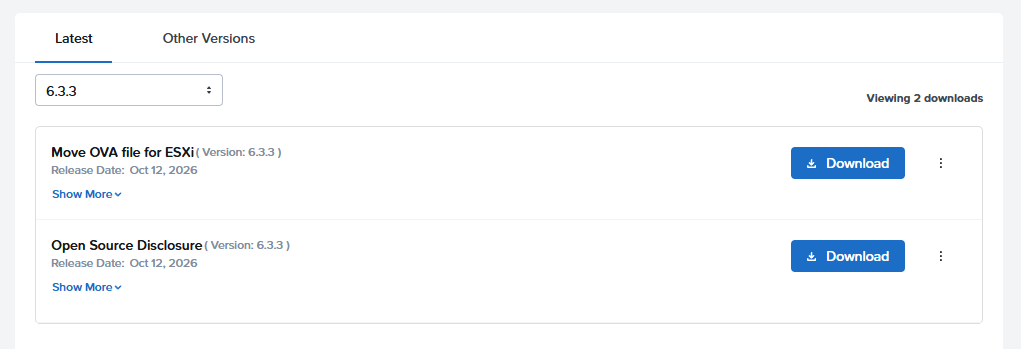
I have not deployed this OVA on an AHV cluster yet, so my earlier procedure (Nutanix Move – Part 4: Deployment) should be taken with caution for this version.

Two new vCenter permissions

Migrations from ESXi require two additional privileges on the vCenter account used by Move:

  • Provisioning: Allow virtual machine download
  • Cryptographic Operations: Direct Access

The release notes require them for any migration “with ESXi as source”, without limiting them to DirectPath. I listed the other prerequisites in Nutanix Move – Part 3: Prerequisites.

Versions supported by Nutanix Move 6.3.3

  • AOS: 6.10, 7.0, 7.3, 7.5 and 7.6
  • Prism Central: pc.2024.3, pc.7.3, pc.7.5 and pc.7.6
  • ESXi hosts: 6.5, 6.7, 7.0 up to Update 3, 8.0, 8.0 Update 1 and 8.0 Update 3
  • vCenter: 6.7, 7.0 up to Update 3, 8.0, 8.0 Update 3 and 9.0

The list has gaps: vCenter 9.0 is in it while ESXi 9.0 is not, ESXi 8.0 Update 2 is missing on the host side, and so are vCenter 8.0 Update 1 and Update 2. I do not know whether these are omissions or versions that were not qualified.

ESXi hosts with a free license are not supported, and the supported VirtIO version is 1.2.5, which I wrote about in Nutanix AHV: VirtIO v1.2.5 is available!.

Known issues to read before you migrate

The list of known issues is long, so I am keeping five that directly affect a migration from ESXi:

  • ENG-981753: with DirectPath, the migration fails with the message “Invalid configuration for device ‘0’” when two clusters in the same datacenter have datastores with the same name and different contents. The workaround is to rename the datastores.
  • ENG-992713: after the cutover of multiple VMs migrated without VDDK, the source agent does not release the memory it consumed.
  • ENG-983434: Move marks VMs as unmigratable when they sit on a shared datastore mounted on ESXi hosts in different datacenters.
  • ENG-993473: Move attaches a maximum of 16 disks during migrations, even when free slots remain.
  • ENG-992495: the CPU of the Move VM reaches its limit during migration.

All that is left for me is to deploy this version in my lab and see what DirectPath does on a real migration… In the meantime, my ultimate migration guide to AHV covers the rest of the journey.

Read More
Nutanix AOS 7.6, AHV 11.2 and PC 7.6 article header

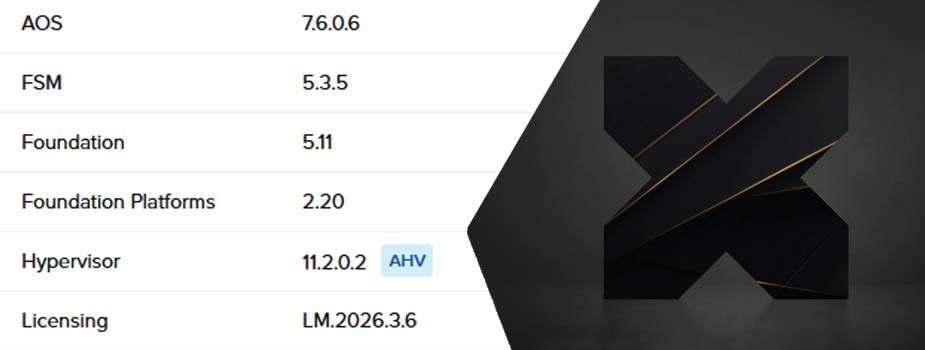
The change I enjoyed the most while moving our production clusters and my homelab to the Nutanix AOS 7.6 upgrade takes two keystrokes: copy and paste finally works in the virtual machine console. It is far from the most significant part of this release, which mostly reshapes SSH access to the CVMs and turns Prism Central 7.6 into a much steadier version than 7.3 and 7.5 were at launch.

We started from AOS 7.5.1.8 and AHV 11.0.1.8 and landed on AOS 7.6.0.6, AHV 11.2.0.2 and Prism Central pc.7.6.0.6, across several production clusters hosted at OVHcloud and on the Supermicro 5019D-FN8TP node of my homelab (8 cores, 128 GB of RAM, 2 TB raw).

For that node, no Foundation on unsupported hardware like last year: I went through Nutanix CE this time. I covered the previous release in my article on AOS 7.5 and AHV 11.0.

Upgrading to AOS 7.6.0.6: order and rollout

I followed the order Nutanix recommends, the one I detail in my article on LCM: Prism Central first, then AOS, then AHV. On the production clusters everything went through LCM with the versions it offered that day, and I timed nothing: I start the job and let it live its own life.

On the homelab I had to download the files and upload them to the cluster before I could start the upgrade, on the same principle as for Prism Central 2024.2.

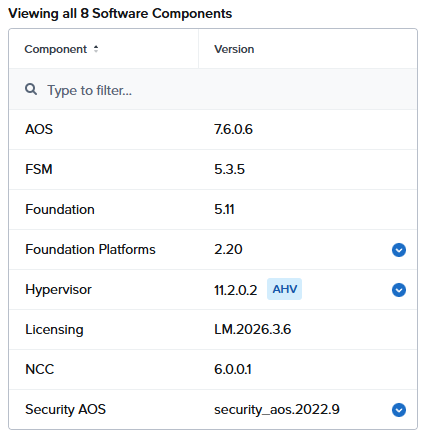
After the upgrade, the LCM inventory shows the following versions:

LCM inventory showing AOS 7.6.0.6, AHV 11.2.0.2 and NCC 6.0.0.1 after the upgrade

Taking the 7.6.0.6 that LCM offered instead of the initial 7.6 matters more than it looks. That patch clears two known blockers of 7.6: an AOS upgrade that freezes and never progresses (KB-22340), and a host stuck in “EnteringMaintenance” during the move to AHV 11.2 because the Narsil service keeps restarting. On the Prism Central side, pc.7.6.0.6 also fixes the login failures that could lock you out of the web console while upgrading from pc.7.3 or later.

The “Inconsistent Virtual Switch” alert after the upgrade

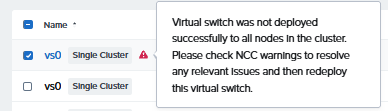
The only real snag of the whole operation: on two or three of our clusters, Prism raised an “Inconsistent Virtual Switch” alert once the upgrade was over. Nutanix documents it as a known issue of AOS 7.6, still open in 7.6.0.6: the VLAN configured on the AHV host bridge port no longer matches the one AOS stored for the virtual switch (KB-22397).

The vs0 virtual switch flagged as faulty after the upgrade to AOS 7.6.0.6

The same alert also shows up in the list of issues fixed by 7.6, for a different cause, an MTU mismatch between the hosts’ br0 bridge and the virtual switch. One variant goes away, another arrives. We fixed them.

Prism Central 7.6, steady at last

On our side, in production as well as on the homelab, pc.7.6.0.6 carries far fewer bugs than the first versions of 7.3 and 7.5 did. Two things are still worth checking before you start the upgrade.

First: pc.7.6 automatically moves every existing entity without a project into a system project, the “Default Project”, and that migration cannot be rolled back. Second: Nutanix Kubernetes Engine is not compatible with pc.7.6, so you need to move your workloads to NKP beforehand. Good news on the other hand, the local admin account lockout every ten minutes reported in pc.7.6 (KB-22348) no longer appears in the known issues of pc.7.6.0.6.

Copy and paste in the VM console

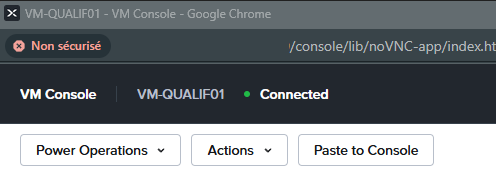
This one is my favourite of the release! Pasting a long password or a license key into a virtual machine console, instead of typing it character by character, now works from the console launched by Prism Central:

The "Paste to Console" button in the console of an AHV 11.2 VM

You will need both AHV 11.2 and pc.7.6: a cluster left on AHV 11.0 behind an up-to-date Prism Central gets nothing. On a related note, the “Console” tab of a VM is deprecated in Prism Central, the workflow now goes through the “Launch Console” action.

Secure Access and the end of direct SSH

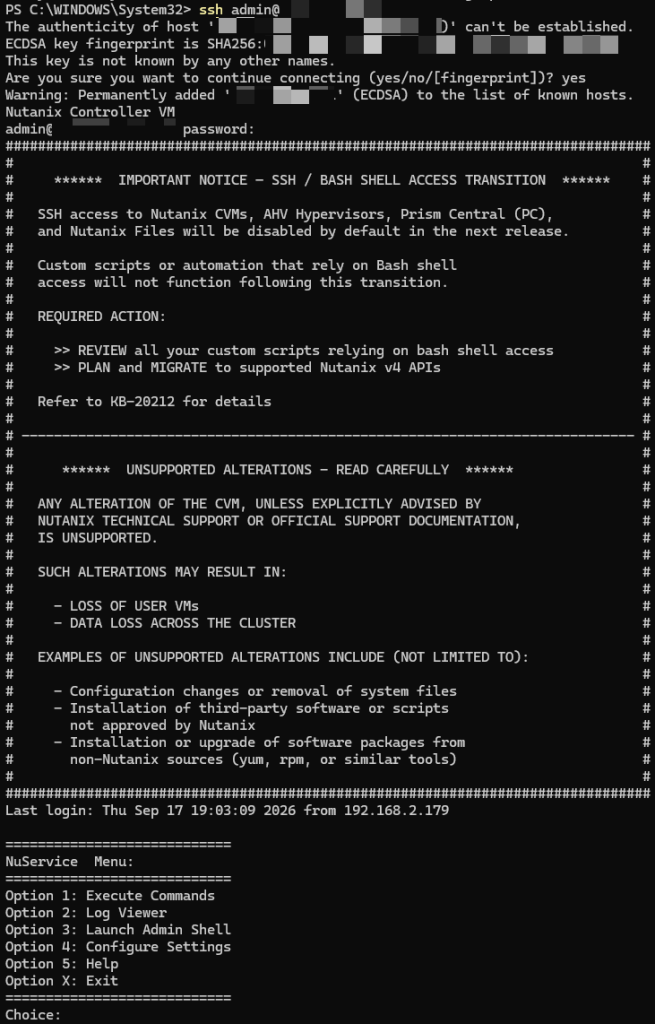
With Secure Access, the admin user who connects over SSH to a CVM no longer lands on a bash prompt: the session opens the NuService Menu, a restricted shell that runs allow-listed commands on the CVM or the AHV host, shows the cluster logs, opens a bash session (admin shell) and manages local LDAP authentication. It is surprising at first, and I have not needed to type a single command in it yet.

NuService Menu displayed on an SSH connection as admin to an AOS 7.6 CVM

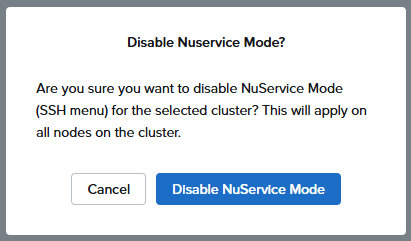
The nutanix user, for its part, keeps a regular bash session. For support work, the “Support-only Login” requires a token exchange with Nutanix and opens bash access for a 72-hour window. External SSH access is turned on or off cluster by cluster from Prism Central, through the “NuService Mode”, with a confirmation prompt on every switch:

NuService Mode disable confirmation dialog in Prism Central

On the host side, AHV 11.2 closes external SSH access on port 22 by default: you go through the CVM to reach the host, and the external SSH setting now applies to the CVMs only. What I described in The end of SSH on Nutanix keeps coming true release after release.

One last change under the hood: the CVM and the Prism Central VM now run on RHEL 9, aligned with the RHEL 9 STIG hardening guide. Day to day, it makes very little difference.

What I have not tested yet

Several notable features of this release are still waiting for me to try them, so I am simply listing them:

  • Cluster fault tolerance: the new 1N/2D mode (one node or two disks), and 1N&1D now possible beyond three nodes, with conversion from Prism Central.
  • Cluster expansion: moving an AHV cluster from two to three nodes.
  • Live migration across clusters: from an older AHV version to a newer one, with a choice of destination storage.
  • BIOS UUID: preserved through failover and restore, so third-party backup software keeps its chain intact.
  • Memory metrics: ballooned memory is now reported separately from what the VMs really consume.
  • Capacity per node: 307 TB on all-flash NVMe against 185 TB before, only for new deployments that start on 7.6. An upgraded cluster keeps its former limits.

Planning ahead: the end of the legacy APIs

API versions v0.8, v1, v2 and v3 lose support with the AOS and Prism Central release planned for Q2 2027. The first effect is visible in pc.7.6 already: Nutanix Guest Tools actions move to v4 permissions, and custom roles built on v3 permissions have to be updated. If your scripts still talk to the v2 or v3 APIs, you have less than a year to move them to the v4 APIs…

Now you know everything, all that is left is to launch your LCM upgrades!

Read More
Finding an unreachable IPMI over IPv6 link-local

This weekend I set out to move the IPMI of my lab Nutanix node onto my management segment. I changed the card’s address and the switch port’s VLAN profile within the same minute. The node had just been wiped, it had no operating system left, so there was no way to fix anything from the inside, and the card vanished from the network.

What gave me back the controls came down to an IPv6 link-local address and two commands, a quarter of an hour all told. Here is the method, on Windows 11 and on Rocky Linux.

The evening my IPMI vanished from the network

Two changes in the same minute left me no way of telling which one had broken what. I plugged a laptop straight into the dedicated IPMI port of this Supermicro SYS-5019D-4C-FN8TP to get back in.

On a running node, ipmitool locally settles that kind of blunder in a single command through the KCS interface, without going anywhere near the network, but a freshly wiped server closes that door. If you are in the opposite situation, with the card reachable and the password lost, I covered that case here: lost IPMI password on a Nutanix or Supermicro node.

Why link-local answers when IPv4 stays silent

Every active IPv6 interface carries an address starting with fe80::, which it builds on its own from its MAC and without DHCP. A machine whose IPv4 is wrong or missing therefore keeps a reachable identity on its segment. The ff02::1 address is the all-nodes multicast group: a ping to that group makes everything living at the end of the cable answer, and an IPMI powered in standby answers even with the server switched off. Multicast does not cross a router, so you do have to sit on the same segment as the card.

One detail settles the case for this method, which I only saw later while reading back my card’s configuration on firmware 01.74.13: the line “ARP Responses Enabled, Gratuitous ARP Disabled”. The IPMI never announces itself on the network, so listening passively on the segment gets you nowhere.

Finding the card on the cable

The principle is the same on both systems: identify the interface, send the multicast, read the neighbour cache.

On Windows 11

  • Spotting the adapter and its index:
Get-NetAdapter

The ifIndex column gives you the number to reuse afterwards, index 3 in my case.

On a direct link there is no DHCP server at all, and an interface left on automatic falls back to APIPA on 169.254.x.x, in which case nothing will ever ping, even against an IPMI in perfect health. Set a static address:

New-NetIPAddress -InterfaceAlias "Ethernet" -IPAddress 192.168.10.50 -PrefixLength 24
  • Sending the multicast, with the interface index as the zone suffix:
ping -6 ff02::1%3
  • Reading the discovered neighbours, with their MAC address:
Get-NetNeighbor -InterfaceIndex 3

On Rocky Linux

  • Identifying the interface:
ip link show
  • Sending the multicast:
ping6 -c4 ff02::1%ens0
  • Command output:
PING ff02::1%ens0(ff02::1%ens0) 56 data bytes
64 bytes from fe80:0:0:0:225:90ff:feb8:f313%ens0: icmp_seq=1 ttl=64 time=0.659 ms
64 bytes from fe80:0:0:0:225:90ff:feb8:f313%ens0: icmp_seq=2 ttl=64 time=0.288 ms
  • Matching the addresses to their MAC:
ip -6 neigh show dev ens0

One subtlety costs time when you move from one system to the other: the zone suffix takes an interface name on Linux and a numeric index on Windows, and an address copied from one console to the other fails without any explicit message.

Reading the vendor straight from the address

When a link-local address carries ff:fe in the middle, it derives from the MAC through the EUI-64 method, and the operation reverses in your head. Drop the two ff:fe bytes from the middle of fe80::225:90ff:feb8:f313, you are left with 02:25:90:b8:f3:13, then flip the second bit of the first byte: 02 becomes 00, which is a Super Micro Computer OUI.

Opening the web interface over link-local

The address you have recovered goes straight into a browser, in square brackets and followed by its zone suffix:

https://[fe80::225:90ff:feb8:f313%3]

The suffix is mandatory, a link-local address being unique only on a given segment. If your browser refuses that format, curl will at least confirm the service answers, with the % escaped as %25 and the -g option, without which the brackets are treated as globbing:

curl -k -g "https://[fe80::225:90ff:feb8:f313%25ens0]/"

What the IPMI told me

Once the interface was open, the answer came down to one line on its network page: the card was carrying 192.168.10.11, when I thought I had configured 192.168.10.1. The port’s VLAN profile had nothing to do with it, and the address I had typed belongs to the machine hosting my DNS. Reconfigured on the right address, and it was back.

My management cards now live in a reserved range at the bottom of the segment, with a matching DHCP exclusion, the lab node on .1 and the production node on .2. And I have stuck to a simple rule since: one change at a time, checked before the next one.

Read More
Recovering a lost IPMI password on a Nutanix or Supermicro node

A little misadventure happened to me recently. After changing the IPMI password on my 1-node, I couldn’t log back into my node’s management interface. Forgot it instantly? Typo? Botched copy-paste? Whatever the reason, the access lockout was very real.

Losing your IPMI password (or BMC) is enough to make anyone break a sweat. But rest assured, experience has taught me a golden rule: as long as you still have access to the host operating system (whether it’s AHV, a standard Linux, or even ESXi), you can regain control without needing to perform a hardware reset.

However, the situation can be more critical than it seems. For the experts reading this, you know that in a Nutanix Single-Node environment, IPMI isn’t just an administrative convenience: it’s your one and only fail-safe. Without it, you can’t mount a Phoenix ISO via Remote Media during a major AOS crash or force a reboot. Losing BMC access on such a node quickly becomes a critical bottleneck for your production and remote console access.

In this guide, I’ll share the different methods to regain control of your node in a matter of minutes, from the gentlest approach to the last resort.

Method 1: In-band Reset via ipmitool

If you are running Nutanix AHV or a classic Linux distribution, you’re in luck: the ipmitool utility is usually available natively. The trick here relies on the KCS (Keyboard Controller Style) hardware channel. Simply put, this allows the host OS to communicate directly with the BMC chip via the motherboard bus (LPC/PCIe), entirely bypassing the management network.

Identify and Overwrite the Admin Account

Log in as root on your host. As a precaution, first ensure that the kernel modules managing IPMI are loaded:

modprobe ipmi_si
modprobe ipmi_devintf

Next, we’ll list the configured users (usually on channel 1) to spot the ID of our administrator account. In 99% of cases, the default account (ADMIN) corresponds to ID 2.

ipmitool user list 1

In my case, the ID is indeed 2:

ipmitool user list 1 output with the ADMIN account on ID 2

Once the ID is confirmed, the command to force a new password is child’s play:

ipmitool user set password 2 'MyNewPwd123!'

When entering the previous command, the terminal might throw a nasty Invalid data field in request error.

Don’t panic; it’s simply the security policy parser of some firmwares rejecting your request. Not only does it require a minimum complexity (8 characters, uppercase, lowercase, number), but it can also be picky about the request format.

To bypass (or rather, satisfy) this mechanism, force the encoding length to 20 bytes by simply appending 20 to the end of your command:

ipmitool user set password 2 'MyNewPwd123!' 20

Your password has now been overwritten. You can test the connection to the web interface.

Method 2: The IPMICFG Utility (The Solution for VMware ESXi)

If you are running VMware ESXi, the first method might leave you stranded. Why? Because ipmitool is not packaged natively, and resolving dependencies to compile it on a hypervisor is a waste of time that I wouldn’t recommend.

The workaround is called IPMICFG. This is the official tool provided by Supermicro (downloadable from their portal with a free account). Its massive advantage is that it comes as static binaries, ready to use for Linux, Windows, and crucially, ESXi.

Once the archive is transferred to your host and extracted, using it is very straightforward:

./IPMICFG-Linux.x86_64 -user list
./IPMICFG-Linux.x86_64 -user setpwd 2 MyNewPwd123!

Note: Adapt the binary name if you are using the Windows or ESXi version.

You can download the utility here: https://www.supermicro.com/wdl/utility/IPMICFG/

Extreme Case: The Node No Longer Has a Bootable OS

What if the OS won’t boot at all? This is usually where the sweating starts, thinking that without network access to the IPMI or a functional OS, the only remaining option is a factory reset.

Remember: the KCS interface is exposed at the hardware level as soon as the BIOS POST completes. It is completely independent of your storage’s state.

All you have to do is boot the server from a USB stick containing a Linux Live CD (Ubuntu, Rocky Linux). Once on the live desktop, open a terminal, install the utility if it isn’t already there (e.g., apt install ipmitool), and run the exact same commands from Method 1.

Last Resort Method: The BMC Factory Reset

If for some obscure reason the previous methods fail, there is one ultimate resort left: resetting to factory settings.

With the Supermicro tool, the command is direct:

./IPMICFG-Linux.x86_64 -fd

And if you prefer the pure ipmitool method, you need to send a RAW command:

ipmitool raw 0x3c 0x40

⚠️ Warning, the consequences are heavy: Your entire BMC configuration is wiped clean. You will lose the static IP (the port reverts to DHCP), VLAN configurations, and user accounts. The BMC will then reboot (expect a good 2 to 3 minutes). Pay close attention to recent generations of servers: the password may not revert back to ADMIN/ADMIN. It defaults to the unique password printed on the OCP label (often stuck on the chassis or motherboard). Keep this in mind if your server is physically located on the other side of the world!

My Recommendations

Once access is recovered via method 1 or 2, here is what I systematically do to cover my back:

  1. The Password Manager: It’s basic, but save your creds immediately instead of keeping them in your copy-paste clipboard.
  2. The Backup Account: Create a second administrator account.
  3. The Slot ID Trick: Do not put your backup account on Slot ID 3. Force its creation on a higher Slot (like 5 or 6). Why? Because some infrastructure automation scripts have the annoying tendency to forcefully overwrite or modify the early Slots (2 and 3) during provisioning. By placing it further down, you safeguard it.

What about you? Have you ever locked yourself out of one of your nodes? Share your worst nightmare in the comments below!

Read More
VM Startup Policies on Nutanix AHV

A few years ago, following a power outage at one of our two sites, I had to deal with some application issues after the Nutanix cluster restarted. On paper, everything should have gone smoothly: the UPS had taken over, causing no impact on production, but that was without counting on a mishandling by the technician who turned off the UPS. The cluster shut down abruptly.

Once the power returned, the cluster restarted automatically, and all the VMs restarted shortly after. The problem was that some database servers took their time… Too much time for certain business applications…

It’s exactly to save you from these late-night cold sweats that we are going to explore VM Startup Policies on Nutanix AHV today.

While the concept of sequencing the startup of your servers might seem simple, the underlying mechanics are worth a closer look.

What are “VM Startup Policies”?

VM Startup Policies are a native feature of the AHV hypervisor that acts as a scheduler when powering on your virtual machines. This feature was added with version 7.5, which I talked about a while ago on the blog.

VM Startup Policies welcome screen in Prism Central

Instead of suffering the startup order and leaving control to the cluster, you define precise groups of VMs and strict dependency rules. This way, you guarantee that your infrastructure services (like an Active Directory, for example) and your databases are fully operational before allowing the application servers to start.

To fully understand the importance of these rules, a quick reminder of Acropolis HA’s default behavior is necessary. In the absence of a Startup Policy, during a node crash or a cluster restart, the restart of VMs is done in best-effort mode. The Prism Element cluster focuses on rapid resource allocation (CPU/RAM) and triggers the power-on of VMs completely asynchronously and concurrently, and natively has no awareness of your application dependencies.

When do these rules really activate?

It is important to clarify that these strategies do not apply if you decide to restart a VM manually from the Prism Central interface in the middle of the day.

AHV orchestration wakes up and applies your Startup Policies in two critical scenarios:

  1. A High Availability (HA) event: One or more physical nodes in your cluster fail. The AHV hypervisor will migrate and restart the affected VMs on the surviving nodes, strictly respecting the order you defined.
  2. A Full Cluster Restart: Exactly the case of my anecdote! Following a total power outage, for example.

Decrypting the Mechanics: The 3 Fundamental Pillars

Nutanix’s approach has the merit of being extremely visual and very easy to grasp from Prism Central. It relies on three fundamental concepts.

1. Categories

Nutanix’s mechanics rely exclusively on Prism Central Categories. You don’t link “SQL-Server-01” to “Web-Server-01”, but you link the AppMetier:Database category, for example, to the VMs hosting databases and your application VMs to the AppMetier:Applicatif category.

This is where the true power of this architecture lies. If tomorrow you deploy three new application servers in scale-out to handle an unexpected load, you just need to assign them the right category. They will automatically be integrated into the correct order of your Startup Policy without you having to open or modify a single rule.

2. Dependency Levels

This is how you draw your logical chain: category B can only start if category A has finished. There is still a small subtlety to keep in mind: Nutanix allows a maximum of 6 consecutive dependency levels per policy. In 99% of cases, this is more than enough for a classic application (e.g., Infra > DB > Web), but it requires grouping your services well without micromanagement.

Cannot add more than six groups to a policy message

3. Start Conditions

That’s the million-dollar question: how does the AHV hypervisor know that the database is really ready to authorize the next step? The tool offers you 2 options:

  • VM Power On: As soon as the VM is powered on at the hardware level, the next step is launched. The Windows or Linux OS is not even loaded yet. To be avoided for strong dependencies.
  • Guest Boot up: The best of the best! Nutanix waits patiently for the OS to be fully loaded and the network layer to respond.

For the “Guest Boot up” condition to work, the Nutanix Guest Tools (NGT) must absolutely be installed and up to date on the VM. My advice (and the vendor’s recommendation): do not skip the NGT deployment!

There is also an option that complements either one:

  • Delay (in seconds): We “blindly” wait a given time (e.g., 60 seconds) before moving on.

Tutorial: Creating a Startup Policy

Let’s model the most common example: we want to start our domain controllers, wait for them to be ready, start our databases, and finally our application servers.

For this occasion, I created 3 categories: AppType:ActiveDirectory, AppMetier:Database, and finally AppMetier:Applicatif

  1. Log in to Prism Central.
  2. Go to the Infrastructure > Compute > VMs > Policies > VM Startup Policies menu.
  3. Click on Create VM Startup Policy.
  4. Give it an explicit name (e.g., Policy-Tiering-Metier).
  5. In the visual interface, add your first category (e.g., AppType:ActiveDirectory).
  6. Add a second block for AppMetier:Database and a third for AppMetier:Applicatif.
  7. Click on + Configure Start Conditions to define the startup conditions. Choose Guest Boot up and optionally add a 30-second safety delay to allow the internal OS services time to initialize properly.

Click on “Create”, and you’re done!

Creating a VM Startup Policy with three dependency groups

All that’s left is to add your VMs to the right categories.

Pitfalls to Avoid

The tool is great, but here is some field feedback to help you avoid falling into certain traps:

1. Manage the 6-Level Limit Intelligently

Don’t fall into the micromanagement trap! If you try to make a policy for every micro-application, you will quickly saturate the interface, reach the famous 6-level limit, and end up with a convoluted system that’s impossible to maintain over time. Group your resources intelligently and keep it simple!

2. Beware of the Interaction with DR Mechanisms

Startup Policies manage the local resilience of a cluster (HA or reboot). But beware, if you use Nutanix Disaster Recovery to failover to a remote site, this system has its own recovery plan mechanism. During an inter-site failover, it’s the Prism Central Recovery Plan that takes control of the startup order, and no longer your local Startup Policy. Therefore, ensure logical consistency between the two tools.

3. This Only Applies to Guest VMs

There is no need to try sequencing “Nutanix” VMs (Prism Central, CVM, or others…), it will not work. The mechanism is only applicable to your virtual machines, not system ones.

Conclusion

VM Startup Policies on Nutanix AHV are the kind of feature you configure once, forget about, and which can save precious time and provide peace of mind the day the unthinkable happens. Thanks to an intuitive visual interface based on categories, Nutanix has made application resilience accessible to everyone.

If you haven’t already done so, I strongly encourage you to check the status of your NGT (deployment status and versions) and categorize your most critical VMs today. Your future “you,” woken up at 3 AM during the next production incident, will thank you!

Read More
OpenClaw prerequisites on Nutanix AHV

In a previous article, we saw how to deploy OpenClaw on Nutanix AHV. However, before you can fully enjoy this autonomous AI agent, it is crucial to prepare the ground. OpenClaw is not just a simple script: it’s an ecosystem that relies on several technological building blocks to “think” (local LLM), “execute” (Node.js) and “search” (SearXNG).

OpenClaw prerequisites diagram: Ollama, SearXNG, Docker, Homebrew and GPU

In this article, we are going to detail the step-by-step installation of all the necessary prerequisites on your virtual machine (running Ubuntu), explaining for each one why it is essential for OpenClaw to work properly.

1. NVIDIA Drivers: Unleashing GPU Power

OpenClaw can rely on large language models (LLMs) running locally. While it is technically possible to run these models on a processor (CPU), performance would be extremely slow. Installing NVIDIA drivers allows the system to leverage the graphics card (GPU) allocated to your VM via Nutanix AHV (vGPU or Passthrough), thereby ensuring fast and smooth AI inference.

Here is how to update your system and install the appropriate drivers:

# System update
sudo apt update && sudo apt upgrade -y

# NVIDIA server driver installation
sudo apt install nvidia-driver-535-server -y

# Reboot required to take effect
sudo reboot

After the reboot, check that your GPU is correctly recognized with the following command:

nvidia-smi

2. Node.js (v24): OpenClaw’s Execution Engine

The core logic of OpenClaw is developed in JavaScript/TypeScript. Node.js is the execution environment that allows running the agent’s code, managing its dependencies, and orchestrating calls between the interface, the AI model, and the various tools. We are targeting version 24.x here to ensure optimal compatibility.

# Adding the NodeSource repository and installing
curl -fsSL [https://deb.nodesource.com/setup_24.x](https://deb.nodesource.com/setup_24.x) | sudo -E bash -
sudo apt install -y nodejs

# Verifying the installed version
node --version  # should display v24.x

3. Ollama & Qwen 2.5: The Local Brain of the Operation

Ollama is the tool that will allow us to easily download and run our AI model locally. For OpenClaw, we are going to use the Qwen2.5 (7B) model. Why this choice? It’s a lightweight model (suitable for GPUs with about 8 GB of VRAM) and, above all, it is excellent at “Tool Calling”. It is this capability that allows OpenClaw to understand that it needs to execute a web search or run a script rather than simply generating text.

# Installing Ollama
curl -fsSL [https://ollama.ai/install.sh](https://ollama.ai/install.sh) | sh

# Start the Ollama service (in the background)
ollama serve &

# In another terminal, verify that Ollama detects the GPU:
nvidia-smi  # You should see ollama in the list of GPU processes

# Pull (download) the recommended model
ollama pull qwen2.5:7b

# Test the model and verify its execution on the GPU
ollama run qwen2.5:7b "say hello"

# While the model is generating a response, check VRAM usage
nvidia-smi

4. Docker: The Containerization Infrastructure

In order to extend OpenClaw’s capabilities (especially for web search which we will see next), we need third-party services. Docker allows these services to be deployed in an isolated, standardized, and fast manner, without polluting our host system with multiple complex dependencies.

# Installing initial dependencies
sudo apt update
sudo apt install -y ca-certificates curl gnupg

# Adding Docker's official GPG key
sudo install -m 0755 -d /etc/apt/keyrings
curl -fsSL [https://download.docker.com/linux/ubuntu/gpg](https://download.docker.com/linux/ubuntu/gpg) | sudo gpg --dearmor -o /etc/apt/keyrings/docker.gpg
sudo chmod a+r /etc/apt/keyrings/docker.gpg

# Configuring the Docker repository
echo \
  "deb [arch=$(dpkg --print-architecture) signed-by=/etc/apt/keyrings/docker.gpg] \
  [https://download.docker.com/linux/ubuntu](https://download.docker.com/linux/ubuntu) \
  $(. /etc/os-release && echo "$VERSION_CODENAME") stable" | \
  sudo tee /etc/apt/sources.list.d/docker.list > /dev/null

# Installing Docker packages
sudo apt update
sudo apt install -y docker-ce docker-ce-cli containerd.io docker-buildx-plugin docker-compose-plugin

# Adding your user to the docker group to avoid using 'sudo' every time
sudo usermod -aG docker $USER
newgrp docker

# Verifying the installation
docker --version

5. SearXNG: Giving AI Access to the Web

For OpenClaw to be a truly performant search agent, it cannot rely solely on the data contained in the Qwen model (which stops at its training date). SearXNG is a privacy-respecting metasearch engine. By installing it via Docker, we provide OpenClaw with an API (on port 8080) that it can use to retrieve real-time information from the web and source its answers.

# Create a dedicated directory for configuration
mkdir -p ~/searxng && cd ~/searxng

# Run the SearXNG container
docker run -d \
  --name searxng \
  --restart unless-stopped \
  -p 8080:8080 \
  searxng/searxng

# Verify that the container is running correctly
docker ps

# Test that the SearXNG API is responding
curl http://localhost:8080

6. Homebrew & GCC: The Compilation Tools

The OpenClaw Node.js ecosystem sometimes relies on low-level libraries or native packages that need to be compiled directly on your machine during installation. Homebrew (the well-known package manager on macOS, also very handy on Linux) and the GCC compiler are essential to avoid errors during the final dependency installation phase (the famous npm install).

# Install the base Ubuntu compilation package
sudo apt-get install build-essential

# Install Homebrew
/bin/bash -c "$(curl -fsSL [https://raw.githubusercontent.com/Homebrew/install/HEAD/install.sh](https://raw.githubusercontent.com/Homebrew/install/HEAD/install.sh))"

# The end-of-installation instructions for Homebrew will ask you
# to add Homebrew to your PATH. Generally, it looks like this:
# (Make sure to adapt the path if necessary)
echo 'eval "$(/home/linuxbrew/.linuxbrew/bin/brew shellenv)"' >> /home/$USER/.bashrc
eval "$(/home/linuxbrew/.linuxbrew/bin/brew shellenv)"

# Install GCC via Homebrew
brew install gcc

Conclusion

Your virtual machine on Nutanix AHV is now a rich and complete environment, equipped with high-performance GPU drivers, an execution engine (Node.js), an LLM ready to answer (Ollama), web access (SearXNG), and the right compilation tools.

The groundwork is perfectly laid. All that’s left is for you to finalize the installation of the application itself by following the rest of our guide on OpenClaw.

Read More
header nutanix

A few months ago, I wrote an article about installing NGTs via the command line on Linux.

Having recently switched to Rocky Linux 10 for my lab VMs, I’ve run into a problem: the procedure I’ve been using doesn’t work!

NGT installation command output on Rocky Linux 10

Here’s how to work around the problem…

Installing Nutanix Guest Tools

Connect to your Nutanix cluster on Prism Central, go to the list of virtual machines, right-click on the virtual machine where you want to install NGT, and click “Install NGT”:

Install NGT menu in Prism Central

On the next screen, in my case there’s no need to change anything, click on “Confirm and Enter Password”:

NGT installation options

Do not touch anything on this screen, simply click on “Skip and Mount” in the bottom left corner:

Skip and Mount button in the NGT installation

The ISO is mounted; now we move on to the command lines!

Installing Nutanix Guest Tools

Here are the commands to run on the virtual machine to install Nutanix Guest Tools:

  • System update:
sudo dnf update -y && sudo dnf upgrade -y
  • Install Python (if not already installed):
sudo dnf install python3
  • Verify drive letter ID:
blkid -L NUTANIX_TOOLS
  • Command output:
/dev/sr0
  • Mount the ISO:
sudo mount /dev/sr0 /mnt
  • Enter root mode:
sudo su
  • Install NGTs:
dnf install /mnt/installer/linux/ngt_rpm_installer/ngt_repo/nutanix-guest-agent-4.5.1-1.x86_64.rpm
Installing the NGT package with dnf

  • Checking the installation via command line:
yum list installed | grep 'nutanix-guest-agent'
nutanix-guest-agent 4.5.1 package installed

On Prism Central side :

Rocky Linux 10.1 VMs in Prism Central
Read More
From Nutanix CLI to APIs

Those who’ve been following the blog for a while surely remember my “Maxi Best-Of Nutanix CLI” series. I loved writing it, and obviously, it saved the day for some of you more than once. But with the announced end of SSH connections on Nutanix clusters, the days of firing up PuTTY to SSH into a CVM (Controller VM) and typing our ncli or acli commands as we please are over. Today, with the rise of Zero Trust architectures and STIG (Security Technical Implementation Guides) compliance requirements from the US DoD, locking down low-level access is no longer a paranoid option: it’s the production standard.

Why is the API becoming the only master on board?

Let’s be very clear: the REST API is the admin’s essential new Swiss Army knife.

It started with the progressive hardening of our infrastructures, notably with cluster lockdown, but the sentence officially fell in late January 2026: Nutanix announced the End of Support Life (EOSL) for “Bash Shell Access”. The reason is obvious. Leaving direct, unrestricted Bash access to the underlying OS (whether on AOS, AHV, or even Prism Central) has become absolute nonsense when it comes to guaranteeing security, auditability, and long-term support.

Here is the timeline I found in this document:

  • Under AOS 7.0 to 7.5, we started seeing login warnings, the appearance of an info alert warning of the deactivation of SSH password authentication, and options to disable SSH manually.
  • Starting from the next major NCI release, Bash will be disabled by default. Instead: an ultra-restricted “SSH Service Menu” allowing you to run a few acli/ncli commands to perform basic troubleshooting / actions.
  • And for late 2026? The “SSH Service Menu” is in place, the bash shell is disabled, but can be reactivated in “Support-Only” mode via a temporary token provided when handling a ticket with Nutanix support.

The only official, tracked, and complete entry point to interact with the infrastructure via command line is now the API.

Whether it’s the Prism Element API (v2.0) on an isolated cluster, or the Prism Central API (v3/v4) for multi-cluster management, there’s no escaping it: you have to dive in.

The API toolkit

Before we can blast our clusters with API requests, we need to gear up.

Daily, I switch between two go-to tools: Curl when I have a Linux/WSL terminal at hand (fast, raw, scriptable), and Postman when I need to visually explore Nutanix APIs.

If your workstation isn’t ready yet, I’ll point you directly to the dedicated article I’ve already written on this topic: Configure your Windows PC to query Nutanix APIs (WSL & Postman).

However, even when well-equipped, I regularly see admins tearing their hair out over their first Prism Element requests because of two crucial details.

The SSL certificate: By default, a Prism Element cluster uses a self-signed certificate. If you send a standard request, it will be violently rejected. The field reflex? Always add the -k (or --insecure) flag in your curl commands, and remember to disable the SSL certificate verification option in Postman settings.

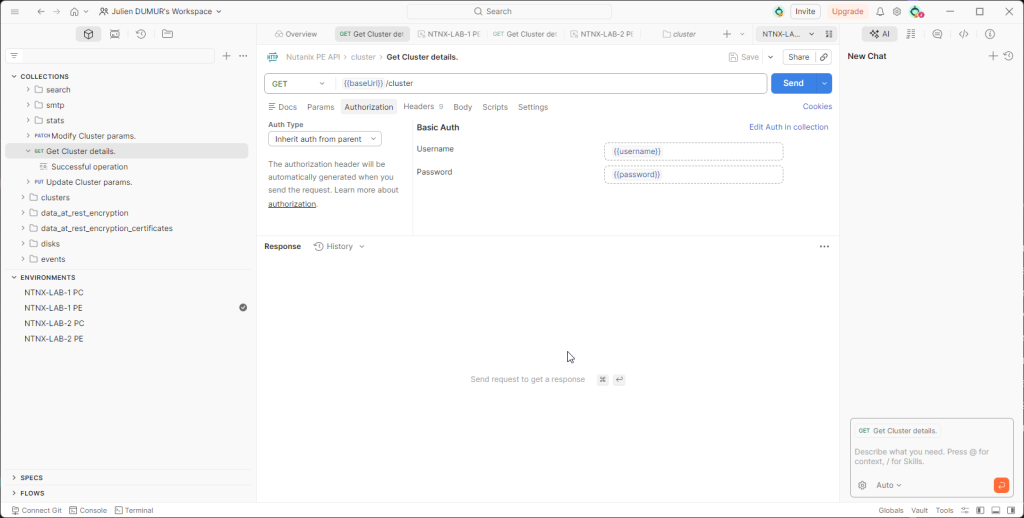
Authentication: The Prism Element v2.0 API relies on Basic Auth. Avoid passing your credentials in plain text in the URL of your request (like https://admin:MySuperPass@IP...). It inevitably ends up in plain text in the history or logs. In Postman, use environment variables!

Get cluster details request in Postman

Exploring the API with the built-in REST API Explorer

How many times have you banged your head against the wall looking for the right syntax in a 500-page PDF documentation? With Nutanix, forget about that. The best documentation isn’t on the support portal; it’s directly embedded in your cluster.

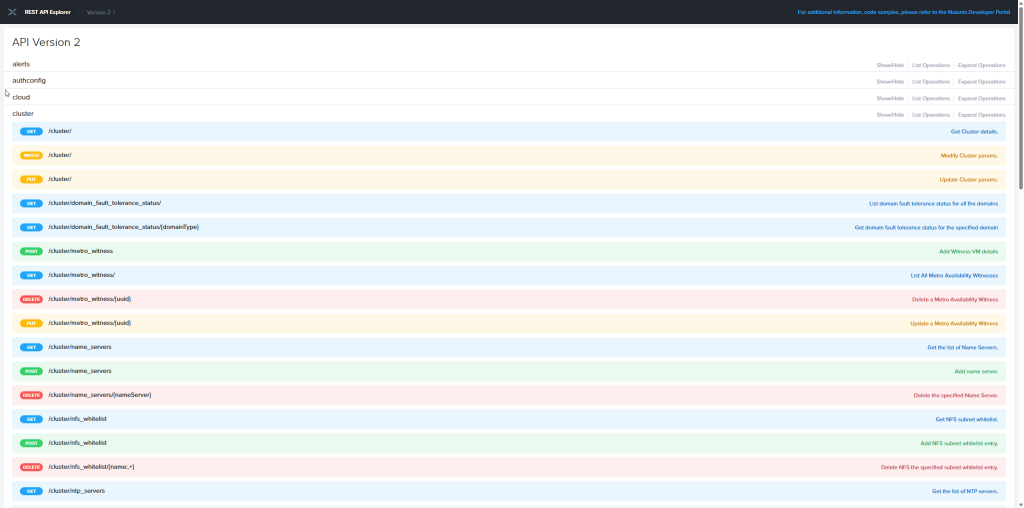
Prism Element natively integrates an interface called REST API Explorer. To access it, it’s very easy: log in to your cluster’s web interface, click on your username at the top right, then select REST API Explorer. You can also type the URL directly: https://<CVM_IP>:9440/api/nutanix/v2/api_explorer/index.html.

The true power of this Swagger isn’t just listing the endpoints (GET /cluster, POST /vms…). It’s its ability to code for you! Fill in the required fields in the interface and click the “Try it out!” button. Not only does the interface execute the request and display the raw JSON response, but above all, it generates the complete and perfectly formatted curl command. It’s the ultimate hack to save time and avoid syntax errors.

REST API Explorer v2 API list

Conclusion

I won’t hide it from you, moving from CLI to REST API took a little effort to adapt. At first, I fumbled around, I grumbled at a malformed header or a temperamental JSON. But once you’ve crossed that milestone, it becomes almost natural. The API opens the doors to large-scale automation and continuous integration. However, you unfortunately won’t be able to find equivalents for every single CLI command…

In the next article of this series, we’re going to get to the heart of the matter. Enough theory, we’ll tackle practice with our first concrete use case: The complete health check of a cluster.

Read More
openclaw on nutanix ahv

If you read my previous article detailing the architecture and the technical stack I chose to deploy OpenClaw, you already know why I decided to run this solution on my Nutanix AHV cluster. Today, we’re getting practical! I will show you, step by step, how to deploy your own instance on a freshly installed Ubuntu virtual machine.

Before kicking off the hostilities, here is a quick reminder of my setup. I provisioned a VM on Nutanix AHV with:

  • 8 vCPUs
  • 32 GB of RAM
  • 250 GB of storage
  • an NVIDIA Tesla P4 graphics card in PCI Passthrough

💡 Why favor full Passthrough over vGPU (virtual GPU)? Quite simply to guarantee near “bare-metal” inference performance. By giving our VM direct and exclusive access to the physical hardware, we completely eliminate the overhead (latency) associated with the virtualization layer.

Let’s start the deployment.

Preparing the Ubuntu VM: System and NVIDIA Drivers

The very first step is to prepare the ground to deploy our AI.

Ubuntu 24.04: Operating System Update

This is a rule I apply every single time I deploy a new operating system. As soon as I connect via SSH, I make sure all packages are up to date to avoid future security flaws or dependency conflicts.

sudo apt update && sudo apt upgrade -y

GPU: Installing NVIDIA Drivers

For OpenClaw to harness the computing power of my Tesla P4, the operating system must be able to communicate with it properly. Here are the commands to run to install the drivers (you can access a more detailed guide on the blog):

sudo apt install nvidia-driver-535-server -y
sudo reboot

Once the machine has rebooted, we log back in and type the command to verify that our GPU is properly detected and ready to work:

nvidia-smi
nvidia-smi output with the Tesla P4 on the OpenClaw VM

Node.js and OpenClaw

Installing Node.js 22

OpenClaw is built on Node.js. To ensure we have a recent and efficient runtime environment (here version 22), we add the official NodeSource repository before launching the installation:

curl -fsSL [https://deb.nodesource.com/setup_22.x](https://deb.nodesource.com/setup_22.x) | sudo -E bash -
sudo apt install -y nodejs

Basic OpenClaw Deployment

Now that NodeJS is in place, we move on to installing OpenClaw. A simple curl script provided by the developers does the heavy lifting:

curl -fsSL [https://openclaw.ai/install.sh](https://openclaw.ai/install.sh) | bash

Once the installation is complete, the system automatically launches the configuration wizard for your instance. I will detail this step as well as the creation of API keys (Discord, Telegram, etc.) in a future blog post.

OpenClaw setup wizard security warning

A small manipulation is required right after the OpenClaw installation if we want to be able to use “openclaw” commands without constraints. We need to add the local installation directory to our PATH environment variable (remember to adapt the username if you are not using administrateur):

export PATH="/home/administrateur/.npm-global/bin:$PATH"

💡 Why this manipulation? It’s an excellent security practice that I highly recommend. By exporting the PATH to ~/.npm-global/bin, we avoid installing global NPM packages with root (sudo) privileges. This significantly reduces attack surfaces and saves you from the eternal Linux permission conflicts!

Cleanly Exposing OpenClaw with Caddy

By default, the OpenClaw web interface listens on port 18789. Instead of attacking this port directly, I always prefer to place a reverse proxy in front of my applications. For this lab, my choice fell on Caddy.

sudo apt install -y caddy

💡 Why Caddy rather than Apache or Nginx? Because Caddy is formidably efficient. Where Nginx sometimes requires long configuration blocks for simple proxying, Caddy does the same job in literally three lines of code, all while being ultra-lightweight.

We edit its configuration file:

sudo vi /etc/caddy/Caddyfile

And we replace the entire content with the following instructions (replace the IP with the one of your VM, in my case 192.168.84.134):

192.168.84.134 {
    reverse_proxy 127.0.0.1:18789
}

Now, all that’s left is to restart the service so the proxy takes over:

sudo systemctl restart caddy

Network Security: Locking Down the OpenClaw Instance

Having a functional instance is good, securing it is essential. Even if you are on your local network (LAN), you should never leave open access to your control interface. We are going to apply a strict configuration via the OpenClaw CLI commands.

We start by restricting the Gateway listening to the local loopback to prevent any direct access:

openclaw config set gateway.bind loopback

We then force the operating mode to local, and activate token authentication (the bare minimum):

openclaw config set gateway.mode local
openclaw config set gateway.auth.mode token

Finally, since we are going through Caddy, we must authorize Cross-Origin requests (CORS) coming from our IP address, otherwise the browser will block the page (don’t forget to adapt the IP):

openclaw config set gateway.controlUi.allowedOrigins '["[https://192.168.84.134](https://192.168.84.134)"]'

We restart the service to apply our lockdown:

openclaw gateway restart

💡 The security pattern applied here is akin to local “Zero Trust”. By forcing OpenClaw on the loopback (127.0.0.1), we ensure that absolutely all traffic is forced to go through our Caddy proxy. Coupled with CORS filtering and authentication, we provide a baseline protection for our instance against potential scans or malicious scripts on the network.

First Contact and Configuration Validation

Retrieving the Access Token

Now that the doors are locked, we need the key. The authentication token was automatically generated during installation. We’re going to go fish it directly out of the JSON configuration file:

grep -i token ~/.openclaw/openclaw.json

Carefully copy this string of characters. Then open your browser and access your Web interface (e.g., https://192.168.84.134).

OpenClaw Gateway Dashboard login page

Enter the token in the “Gateway Token” box.

Device Approval

Once connected, you will notice that something is missing: the system is waiting for us to approve the “device” (the PC or tablet from which we wish to use OpenClaw) to grant it the right to process requests.

Return to your terminal to list the pending devices:

openclaw devices list

Locate your device ID in the list (a UUID-type string) and approve it:

openclaw devices approve b7beb7fa-fa4e-46e9-aec1-282bcce881f6

💡 Device approval (devices approve) is much more than a simple interface formality. It’s a sort of cryptographic handshake. This mechanism guarantees that no unsolicited machine can attach itself to your OpenClaw cluster instance without your knowledge!

Interaction Tests

The OpenClaw instance is now 100% operational! To validate our entire stack, there’s nothing like a full-scale test. You can send a first prompt on the web interface’s integrated chat, or configure a bridge to send a message on the Discord side.

OpenClaw chat interface

Conclusion

We went from a simple Ubuntu VM to a true secured inference server, powered by Node.js and accelerated by a dedicated NVIDIA Tesla P4 GPU via Nutanix AHV. The architecture is clean, secured behind a Caddy proxy, and ready to handle our requests.

But this is only the beginning. In upcoming articles, we will go even further: I will show you how to configure OpenClaw via the startup wizard, deploy local models via Ollama, create an interactive Discord bot, and even inject Google API keys to equip our AI with search capabilities. Stay tuned!

Read More
OpenClaw on Nutanix AHV

If you follow my ramblings on the blog, you know I love tinkering with my clusters and testing somewhat out-of-the-box stuff (cf. my Steamdeck articles for example). Recently, I had a thought: Gemini or Claude in the public cloud is great for coding a Python script or writing emails. But when it comes to asking it to interact with our local infrastructure, that’s where it gets stuck.

So I wondered how I could connect artificial intelligence closer to my VMs. With this in mind, I got my hands on OpenClaw. Honestly, it was a bit of an obstacle course at the start. No more simple conversational gadgets, here we are talking about deploying a true Private AI on a Nutanix AHV cluster capable of acting on our infrastructure. Let me present the tech stack I chose for this experiment.

What is OpenClaw?

For those who have been living in a cave these past few months, OpenClaw is a GitHub project that exceeded 300k stars in just a few months. Imagine an ultra-intelligent thought translator coupled with a butler. Instead of clicking through dozens of menus in a complex interface, you simply ask your infrastructure to work for you in natural language (via a universal web interface or even messaging apps like WhatsApp and Telegram). It is even capable of working on its own while you sleep!

But where it gets exciting for us engineers is under the hood. OpenClaw is not just another “stateless” Large Language Model (LLM) that forgets everything with each new request. It is a true Agentic Gateway. Concretely, this means it orchestrates autonomous agents equipped with tools. These agents can be configured to tap directly into our cluster’s private APIs (like the REST APIs of Prism Element or Prism Central), code, browse the web, and synthesize certain information. In short, we don’t just ask the AI questions anymore, we delegate tasks to it.

OpenClaw dashboard

Why Self-hosted?

In the field, the question of data governance arises the second the word “AI” is pronounced. Out of the question to send sensitive information to servers over which I have no control!

Choosing the Self-hosted route with OpenClaw means taking back absolute control. Data flows, execution logs, and API credentials stay locked down warm and safe on my network, isolated from the internet if desired.

Architecture and Tech Stack

For this project, a simple “Next, Next, Finish” on the corner of a table was out of the question. Here is the robust technical architecture I ended up validating for my deployment.

OpenClaw deployment technical stack infographic

The Foundation: Nutanix AHV & Ubuntu 24.04 LTS

To run this beast, you need solid foundations. I provisioned a virtual machine running Ubuntu 24.04 LTS hosted directly on my Nutanix AHV cluster.

On the sizing side, I went with 8 vCPUs, 32 GB of RAM, and 250 GB of dedicated storage. You might tell me: “32 GB for a gateway, isn’t that a bit too much?” The gateway will have to ingest substantial data streams, maintain the cache of the various active agents, and potentially handle heavy parallel API querying. And besides, I can allocate these resources in my lab, so why deprive myself?

The Application Engine: NodeJS 22

At the heart of OpenClaw, the magic happens thanks to NodeJS 22. It is the execution engine that runs the gateway and its AI agent integrations.

Why is Node 22 an excellent architectural choice here? For its asynchronous management (Event Loop). When you ask OpenClaw to do a status report on 50 VMs, the gateway will initiate multiple API calls to Prism Central while keeping your WebSocket stream open to reply in real-time in the chat interface. NodeJS excels in this non-blocking concurrency management.

Network Routing: Caddy

The usual operating mode for OpenClaw is to deploy it locally on the machine from which you will connect to it, or to set up a tunnel to access the remote instance. Let’s not lie to ourselves, I wanted to type the IP in my browser and be able to access my instance, whether I’m on my PC or my tablet.

To make this possible, I use a Caddy Reverse Proxy. Caddy manages traffic routing and HTTPS encryption fully automatically.

I can already hear you saying: “Yes, but if a guy connects to your local network, he will have access to your instance!”. Well no! Because OpenClaw natively integrates a Device Whitelisting system. If your PC has never been connected to the instance, you will have to provide the “Gateway Token”. Then, you will have to accept this new connection on the OpenClaw instance side. As you can see, only previously authorized devices can enjoy your local instance.

The Entry Point: Discord

The choice of entry point, which will allow you to interact with OpenClaw, is often a matter of taste and colors.

OpenClaw directly integrates a chat system so you can talk to it. It’s good, it’s native, but inaccessible if I’m not at home. The system also offers to configure external entry points like Telegram, WhatsApp, Discord, or even Teams and Slack. And that is clearly a big plus because it gives almost unlimited possibilities!

OpenClaw agent answering on a Discord server

What’s Next?

The goal of this article was to present the architecture envisioned for my OpenClaw assistant, to understand what we are deploying and why. We therefore have a coherent technical stack, performant thanks to Nutanix AHV, and hosted locally.

In a future article, I will explain how to install OpenClaw step by step until you have a functional instance.

Read More